

Secure AI OCR tool. Images are processed instantly and automatically deleted after conversion.
PDF to Word Converter
Our OCR engine extracts text from your PDF and delivers a clean, fully editable Word document. Works on both searchable PDFs and scanned image PDFs. No Adobe Acrobat required, no signup, completely free.
How to Convert PDF to Word Online (3 Steps)
No software installation, no paid subscription. Convert your PDF to an editable Word document in seconds.
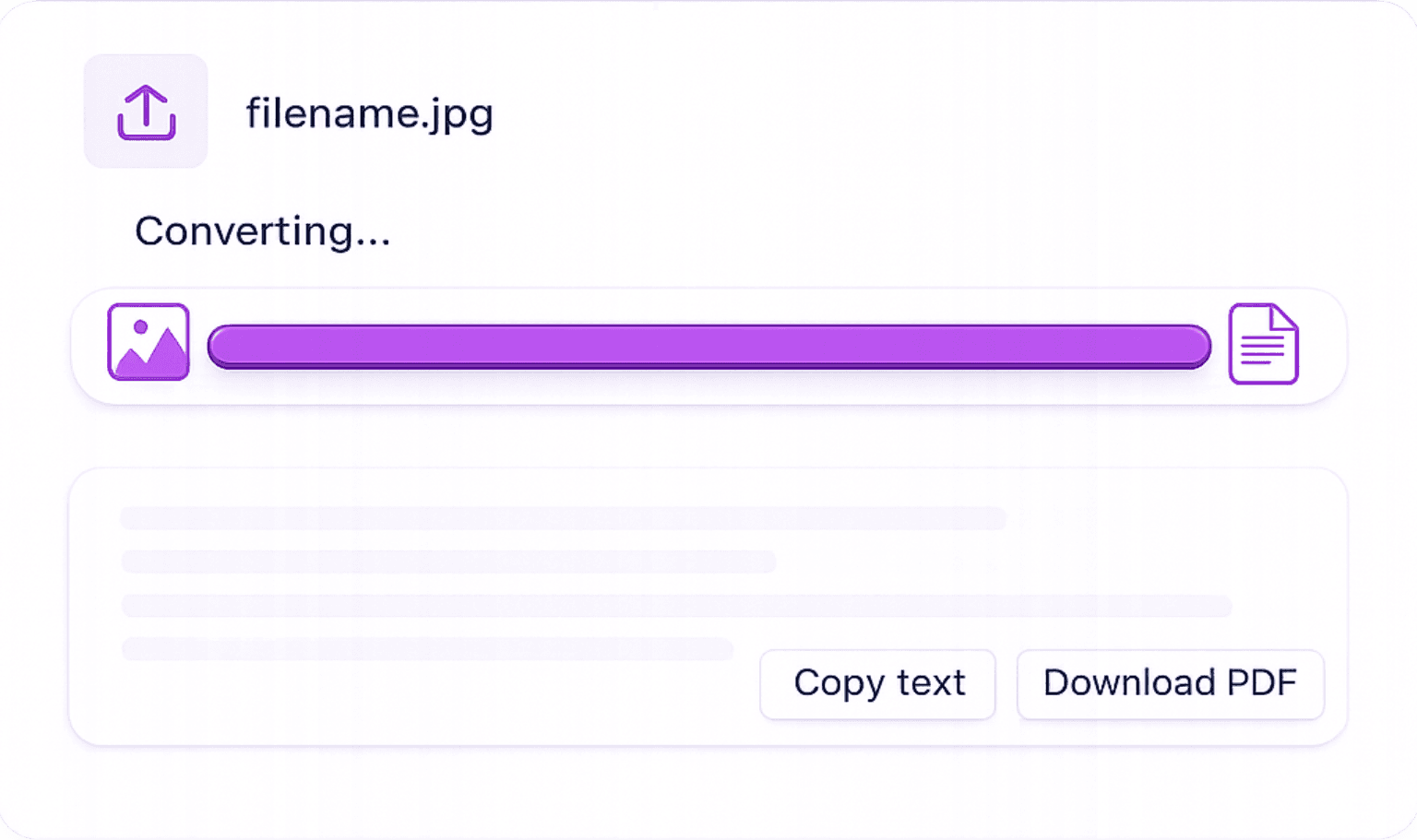
Upload Your PDF File: Select the PDF you want to convert from your device. Works with both text-based PDFs and scanned image PDFs up to the file size limit.
AI Extracts & Structures the Text: Our tool reads the PDF, extracting embedded text from searchable PDFs directly, and using OCR for scanned pages, then structures the content into clean Word-compatible output.
Download Your Editable DOCX: Click the Word button to download your .docx file. Open it in Microsoft Word, Google Docs, or LibreOffice and start editing immediately.
Why Our PDF to Word Converter Is the Best Free Option
No subscription. No watermarks. No Adobe Acrobat. Just fast, clean PDF to Word conversion with zero friction.
No Subscription, Genuinely Free
Unlike Smallpdf or Adobe, our converter is free to use every day with no per-conversion fees, no trial period, and no watermarks on output.
Secure: Files Deleted After Processing
Your PDF is processed over an encrypted connection and permanently deleted from our servers after you download the DOCX. We never store your documents.
No Adobe Acrobat Needed
Works entirely in your browser. No desktop software, no plugin, no Adobe account required, on Windows, macOS, iOS, or Android.
Editable Output with Document Structure
The converted Word file preserves paragraph breaks, text flow, and basic document structure, ready to edit without starting from scratch.
Who Uses PDF to Word Conversion?
PDF to Word is one of the most-searched document tools online, here's why people use it every day.
Edit a Contract or Legal Document: Received a contract as a PDF? Convert it to Word to add comments, track changes, or redraft clauses, without paying for Adobe Acrobat.
Update a Resume Saved as PDF: Convert your PDF resume to Word to make quick edits, update job history, or apply a new template for a different application.
Repurpose Published Reports into New Documents: Extract and repurpose content from PDF reports, whitepapers, or publications into new Word documents for editing or reuse.
Students Editing Locked Course Materials: Convert PDF lecture notes, reading lists, or assignment briefs to Word for annotation, highlighting, and personal editing.
PDF to Word: Frequently Asked Questions
Online Image to text converter converts any image into editable text.