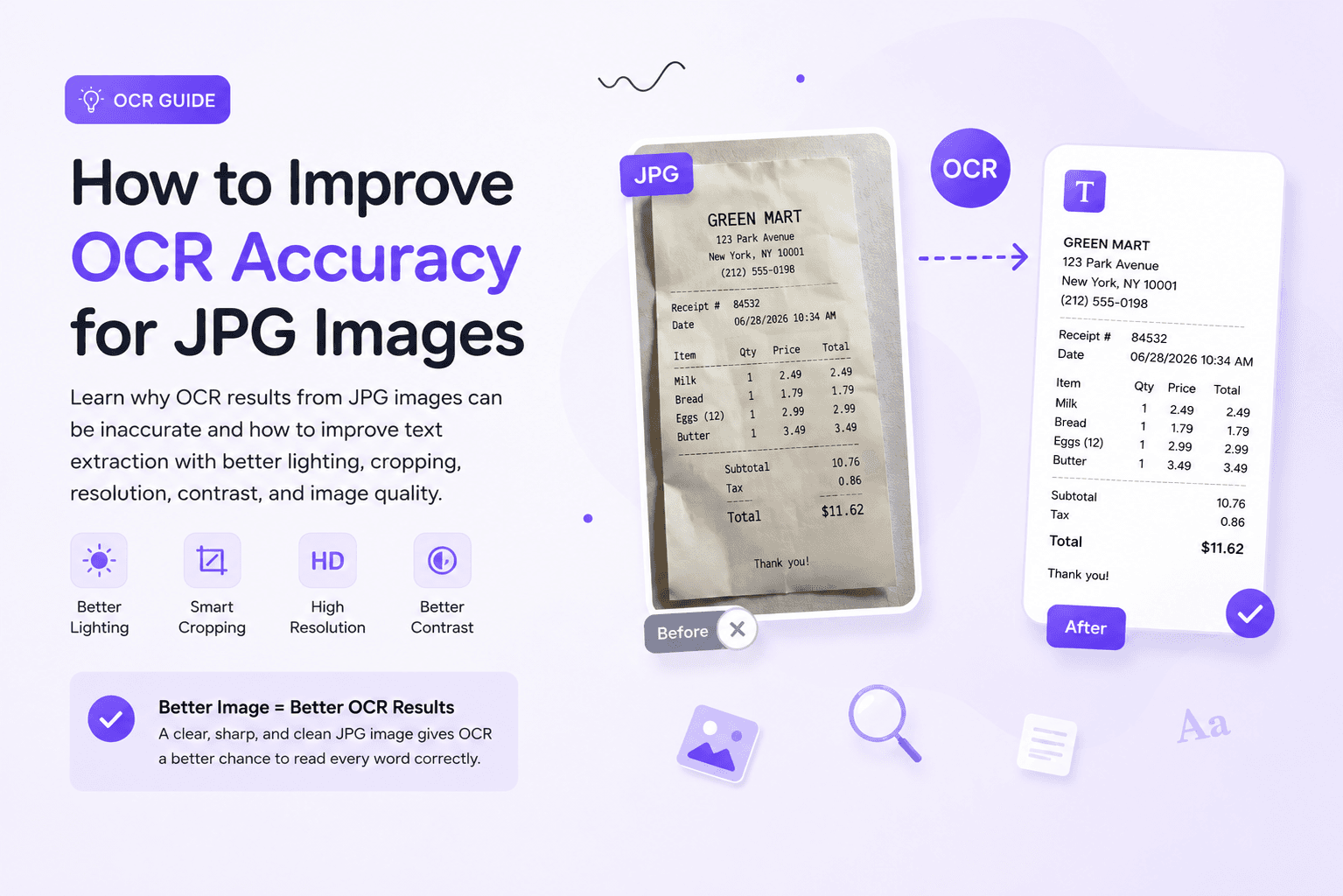
How to Improve OCR Accuracy for JPG Images
OCR is useful when you need to pull text from a JPG image quickly. It can save time with receipts, invoices, scanned documents, product labels, study notes, forms, and mobile photos. But the result is not always clean.
Sometimes a number is wrong. Sometimes a word is missing. Sometimes the extracted text appears in the wrong order. A receipt total may look almost correct, but one digit is off. A document may extract well at the top, then become messy near the bottom because the photo was slightly dark or blurred.
When this happens, most people blame the OCR tool first.
That reaction makes sense, but the tool is not always the real problem. A lot of OCR mistakes start with the image itself.
A JPG image stores text as pixels, not as editable words. OCR has to look at those pixels, detect letter shapes, separate text from the background, and rebuild everything into readable text. If the image is dark, blurry, tilted, cropped, compressed, or full of shadows, the tool has less clean information to work with.
Before using a JPG to Text Converter, it helps to check the image quality first. A few small fixes can make the extracted text much cleaner.
Why OCR Accuracy Depends on Image Quality
OCR stands for Optical Character Recognition. In simple words, it reads text inside an image and turns it into editable text.
That sounds simple from the outside. Upload an image, wait a few seconds, copy the text.
But behind that simple process, OCR has to make several decisions. It has to find the text, separate letters from the background, understand line spacing, recognize characters, and keep the reading order correct.
If the image is sharp and readable, the tool has a fair chance.
If the image is poor, it starts guessing.
That is why OCR often confuses similar-looking characters. A 0 can become an O. A 1 can become an l. A 5 can become an S. A blurred rn can look like m.
These are not random mistakes. They usually happen because the letter shapes are not clear enough in the image.
The better the image, the less guessing OCR has to do.
Start With the Cleanest Version of the JPG
The easiest way to improve OCR accuracy is to use the clearest version of the image you have.
If you have the original camera photo, use that instead of a compressed copy. If you have a high-quality scan, use it instead of a low-quality preview. If the image was shared through WhatsApp, Messenger, Instagram, or another app, try to find the original file before uploading it for OCR.
A compressed JPG may look fine on your phone, but small text can lose detail. Thin letters, punctuation marks, invoice numbers, receipt totals, and small labels can become soft or pixelated.
A quick test helps.
Open the image and zoom in. Look at the smallest important text. If you cannot read it comfortably, OCR will probably struggle too.
A sharper image is better than a larger blurry image. Digital zoom often makes the text look bigger, but it does not always add real detail. Moving the camera closer usually works better.
Bad Lighting Can Ruin the Result
Lighting affects OCR more than many people expect.
A photo may look readable to your eyes, but OCR may still miss words if the lighting is uneven. Shadows can hide parts of letters. Glare can wash out text. Yellow indoor lighting can reduce contrast. Dark corners can make a document look clear in one area and messy in another.
Receipts are a common example.
A receipt may have faded gray text, thin paper, folds, and small numbers. If you take the photo under poor lighting, the OCR tool may miss totals, dates, tax amounts, or item names. The text is still there, but the image does not show it clearly enough.
The fix is simple: flatten the receipt, place it under better light, and take the photo from above.
Example: The Same Receipt Can Give Different OCR Results
A receipt photo is a good way to understand OCR accuracy. Small problems can change the result quickly.
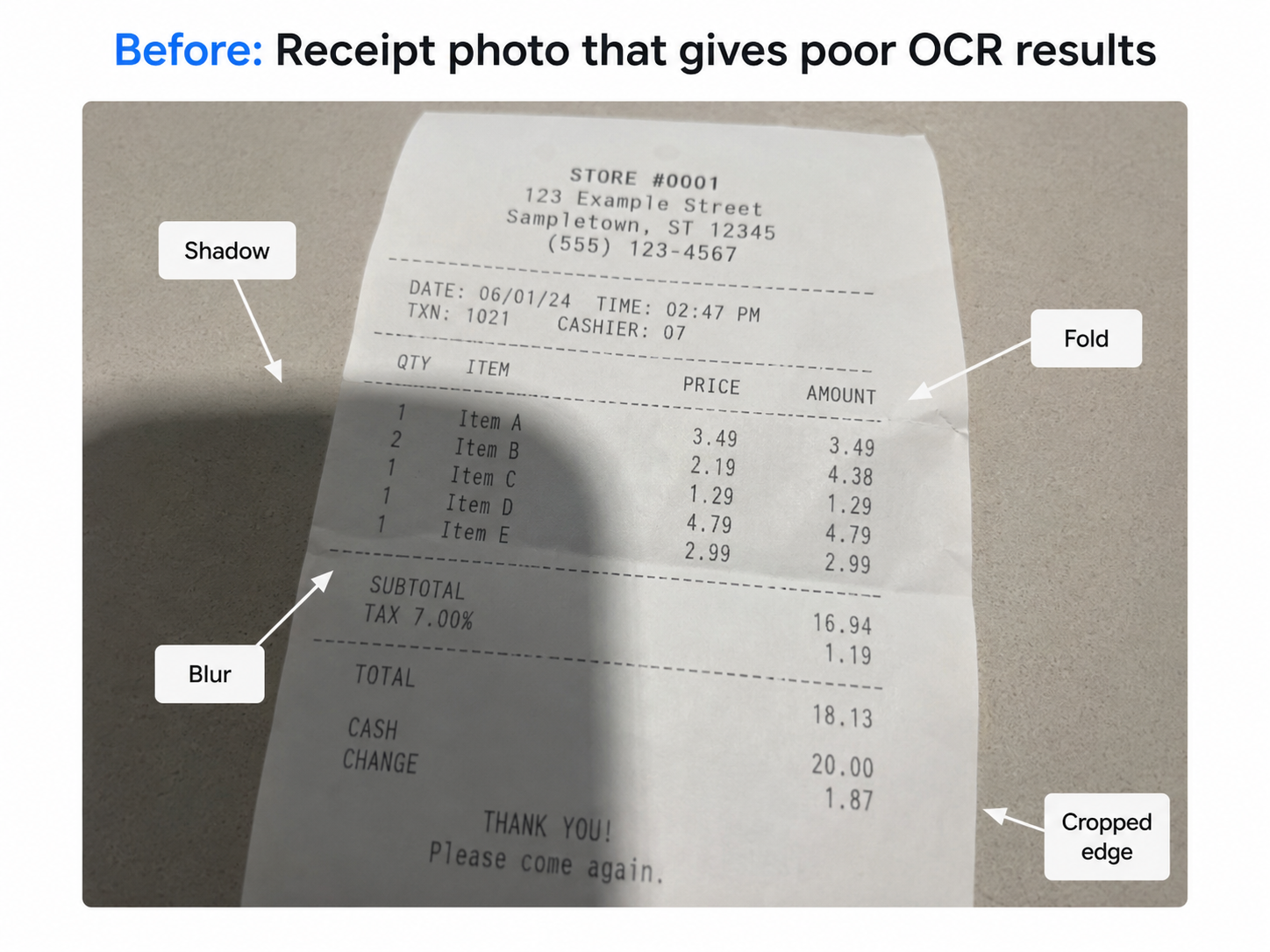
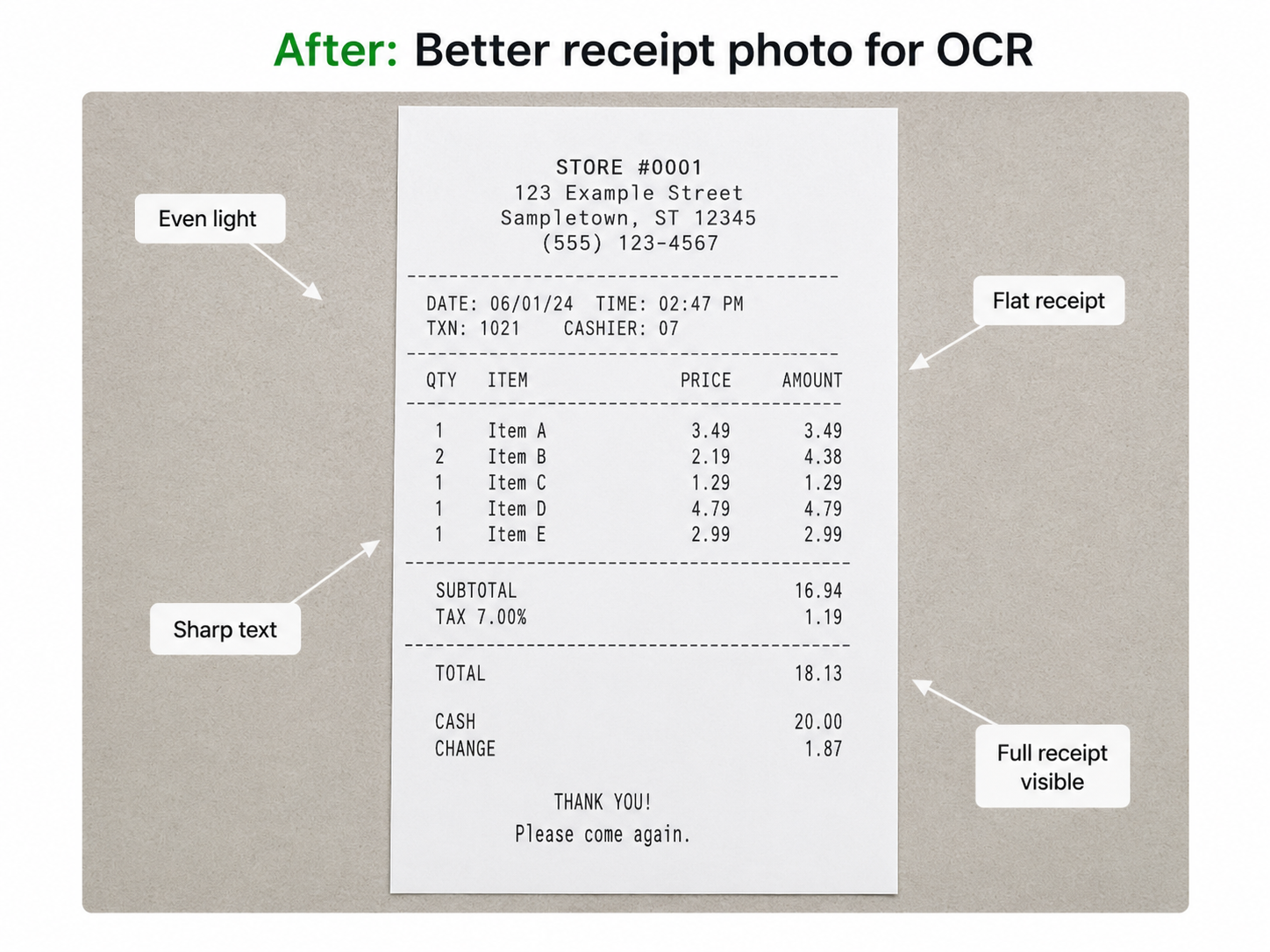
If the receipt is folded, partly shadowed, slightly blurred, or cropped from the edge, OCR may miss totals, dates, tax values, or item numbers. The output may still look believable, but some details can be wrong.
The first image below shows a poor receipt photo for OCR. The second image shows a better version where the receipt is flat, fully visible, evenly lit, and easier for OCR to read.
Keep the Page Straight
OCR works better when the text lines are straight.
A tilted image makes the tool work harder. If a document is photographed from the side, the letters can stretch or shrink across the page. Lines may look uneven. Words may not sit in a clean row. This can make the reading order messy, especially in forms, invoices, receipts, tables, and scanned pages.
A straight image helps OCR understand where each line starts and ends.
Place the paper on a flat surface. Hold the camera directly above it. Keep the document inside the frame with a small margin around the edges.
If the image is already saved and slightly tilted, rotate or straighten it before running OCR. That small edit can clean up the output more than rewriting the extracted text later.
Crop the Image, But Do Not Cut the Text
Cropping can help OCR because it removes unnecessary background.
If your JPG image includes a desk, wall, hand, table, keyboard, or random objects around the document, the tool may have more visual clutter to process. Cropping around the actual text gives the OCR system a cleaner area to read.
But do not crop too tightly.
If the first letter of a line is cut off, OCR cannot recover it. If the bottom of a receipt is missing, the total will not appear. If the page edge cuts into the text, words may come out incomplete.
A good crop leaves a small margin around the content. The full text area should be visible, but the extra background should be reduced.
This is especially useful for receipts, forms, product labels, study notes, and mobile photos of documents.
Improve Contrast Between Text and Background
OCR has an easier time when the text clearly stands out from the background.
Dark text on a light background is usually easiest. Light gray text on faded paper is harder. Text over a colorful or busy background is harder still.
This is why product labels and packaging can be tricky. The text may sit over a design, pattern, glossy surface, or curved package. Even if you can read it, OCR may struggle to separate the letters from the background.
To improve contrast, use a clearer photo, avoid shadows, and make sure the text is not washed out by glare. A slight brightness or contrast adjustment may help, but heavy filters can make things worse.
The goal is not to make the image look pretty. The goal is to make the letters easier to read.
Avoid Over-Compressed JPG Images
JPG compression reduces file size. That is useful for sharing and uploading, but it can damage small text.
When a JPG is heavily compressed, the edges around letters can become rough or blocky. You may see image noise around the text when you zoom in. OCR reads those rough edges and tries to guess the character.
This is one reason images sent through messaging apps often produce weaker OCR results. WhatsApp, social apps, and some website upload tools may compress images automatically.
The compressed image may still look acceptable at first glance, but the letter details are not as clean as the original.
For important text extraction, use the original file when possible. Avoid saving and resaving the same JPG multiple times. Each round of compression can reduce detail.
A smaller file is not always better for OCR.
OCR Cannot Read What the Image Cuts Off
OCR can only extract what the image actually shows.
If part of the page is cropped, folded, hidden, covered, or outside the frame, the missing text will not appear in the result. This sounds obvious, but it is a common reason for bad OCR output.
Check for simple issues before uploading:
Is the top of the document visible?
Is the bottom part cut off?
Is any text covered by a finger?
Is the receipt folded over a line?
Is the paper curved?
Are the edges of the page inside the frame?
Are small numbers readable?
Receipts, invoices, and forms need extra care because important information is often near the edges. Totals, dates, invoice numbers, and tax details can easily be missed if the image is cropped too tightly.
Printed Text Usually Works Better Than Handwriting
Printed text is easier for OCR because the letters are consistent.
Fonts have predictable shapes. Lines are usually straight. Spacing is cleaner. This gives OCR a better chance of reading the text correctly.
Handwriting is harder. Every person writes differently. Some letters join together. Some words are slanted. Some lines are uneven. OCR can still read clear handwriting, but the accuracy usually depends on how neat and visible the writing is.
If you are working with handwritten JPG images, use the cleanest photo possible. Good lighting, straight alignment, dark writing, and a simple background can help.
If the image has both printed and handwritten text, the printed part will usually extract more accurately.
Common JPG Problems and Quick Fixes
Here is a simple way to look at OCR problems before you upload the image
JPG image problem | What OCR may do | Quick fix |
|---|---|---|
Dark receipt photo | Miss totals, dates, or tax numbers | Retake the photo in brighter light |
Folded receipt | Break or skip text near the fold | Flatten the receipt before capturing it |
Tilted document | Mix line order or spacing | Retake from directly above |
WhatsApp-compressed JPG | Read broken letters incorrectly | Use the original camera photo |
Small invoice text | Skip numbers or punctuation | Take a closer, sharper photo |
Most of these fixes are simple. The hard part is noticing the issue before you run OCR.
A Quick Checklist Before Uploading a JPG Image
Before extracting text from a JPG image, check the file once.
Can you read the text clearly when zoomed in?
Is the image bright enough?
Is the page straight?
Is the full text visible?
Is anything covered by a shadow, fold, or finger?
Are small numbers readable?
Is the background clean enough?
Is there glare on the page?
Are the edges of the document inside the frame?
Are you using the original image instead of a compressed copy?
If the image fails several of these checks, retaking the photo may be faster than cleaning the extracted text later.
When You Should Retake the Photo
Sometimes editing the existing image is not worth it.
If the photo is very blurry, too dark, heavily tilted, or missing part of the text, retaking it is usually the better option. OCR cannot rebuild details that are not clearly present in the image.
Retake the photo if:
The text is unreadable when zoomed in.
The image is too dark.
The document is cut off.
The paper is folded over important text.
The photo was taken from a strong angle.
The file is a compressed copy and the original is available.
When retaking the photo, keep the paper flat, use better lighting, and hold the camera steady. Tap the text area to focus before taking the picture.
That one step can make the result much cleaner.
Should You Edit the JPG Before OCR?
Small edits can help, but heavy editing can hurt.
Useful edits include cropping extra background, rotating the image, brightening a dark photo, and improving contrast slightly. These changes make the text easier to see.
Avoid heavy filters, extreme sharpening, strong color effects, or anything that changes the natural shape of the letters. OCR needs clean letter shapes, not an over-edited image.
A simple image usually works better than a heavily processed one.
Better OCR Results for Common Image Types
Different JPG images need slightly different preparation.
Receipts
Flatten the paper, use bright light, and make sure the full receipt is visible. Pay close attention to totals, dates, tax amounts, and item numbers after extraction.
Invoices
Use a sharp image where small numbers are readable. Invoice numbers, dates, and totals should be checked carefully after OCR.
Scanned Documents
Use the highest-quality scan available. If the page is tilted, rotate it before extracting text.
Product Labels
Avoid glare from glossy packaging. Take the photo close enough so small text is readable.
Study Notes
Printed notes usually work better than handwritten notes. If the text is handwritten, make sure the writing is dark, clear, and not too small.
Final Verdict
Improving OCR accuracy starts before you upload the JPG image. A clear, bright, straight, high-resolution image gives OCR a much better chance of reading the text correctly. A blurry, dark, tilted, cropped, or heavily compressed image will usually create more errors. The fastest fix is often not a different tool. It is a better image. Use the original file when possible. Keep the page straight. Improve lighting. Crop the background without cutting the text. Check small numbers before uploading. After extraction, always review the result once, especially if the image contains totals, dates, names, invoice numbers, or other important details. A quick image check before uploading can save you from fixing messy text later.

Zarbaz Khan
Guides to OCR, document conversion and reviewing extracted text. Read the author profile for background and more articles.