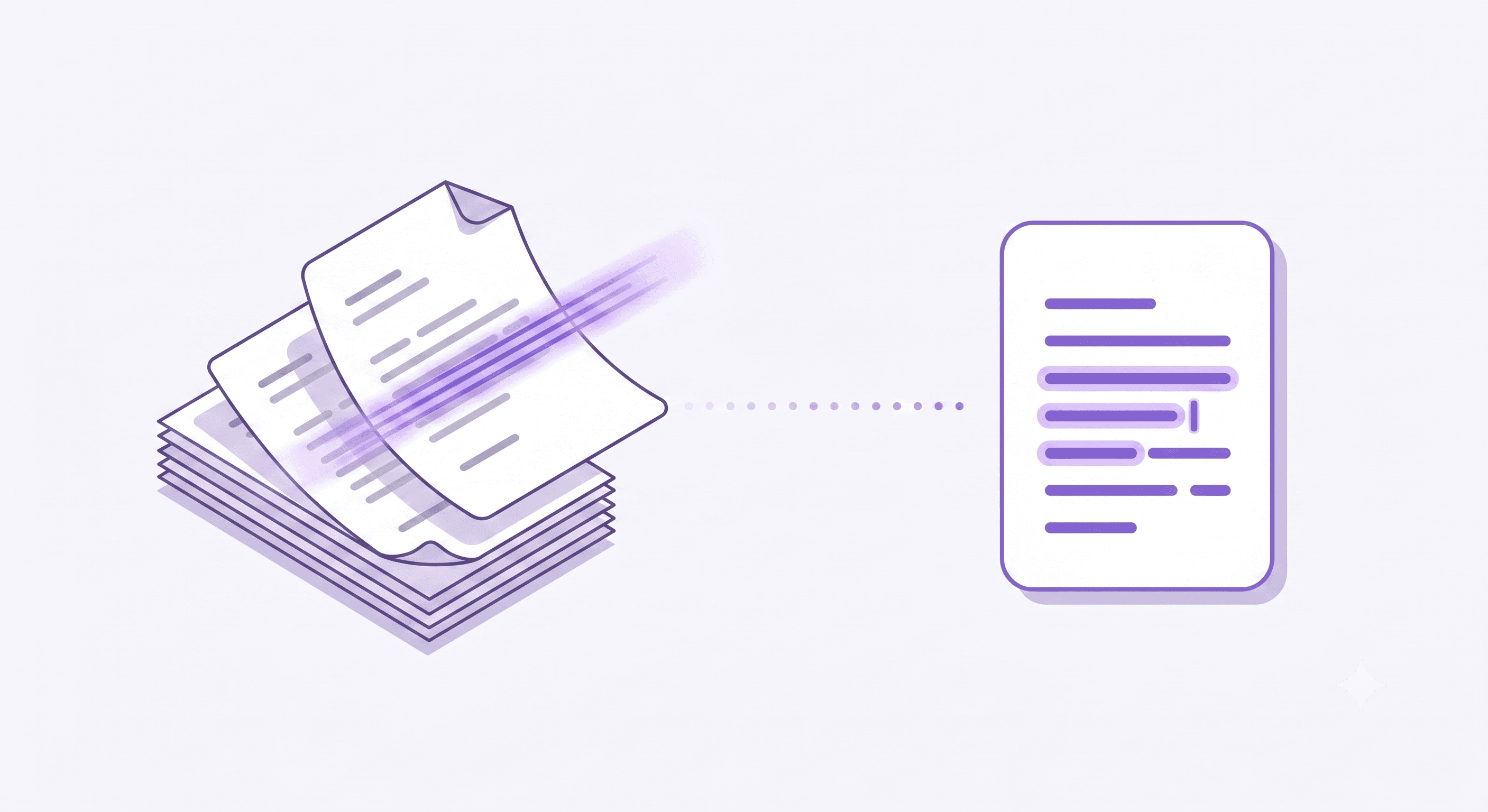
How to Extract Text from a Scanned PDF: Image OCR Steps
If you cannot select a sentence in a PDF, the page may be a scan. The words are pixels rather than embedded text. To edit them, you need optical character recognition (OCR).
Our current PDF converter reads embedded text; it does not run OCR directly on image-only PDFs. You can still use our image OCR workflow by saving each scanned page as an image first. This guide explains that extra step and how to check the result.
Check whether your PDF already has text
Open the PDF and try selecting a sentence. If you can copy it into a text editor, use the PDF to Text converter. Check several pages: a document can contain both digital pages and scanned inserts. Text inside images can be omitted even when other pages convert successfully.
Save a scanned page as an image
Use your PDF reader's image-export feature if it has one. Alternatively, display a page at a readable size and capture it as a PNG or JPG. Keep the whole passage in view and avoid capturing toolbars, sidebars or neighboring pages. Work with one page or column at a time.
A screenshot is a practical workaround for a few pages. For a long scanned document, a dedicated PDF OCR application with multipage support is usually more convenient than manually capturing every page.
Extract the image text
- Open the Image to Text converter and upload one page image.
- Compare the recognized text with the source. Check names, dates, amounts, punctuation and reading order.
- Copy the result or export it to Word or PDF. Repeat for the next page if needed.
Free use includes three conversions per day, up to 4MB per upload. The uploader processes one file at a time. It does not merge a batch of page images.
Improve a difficult scan
Start with the clearest available scan. Straighten tilted pages, crop dark borders and use one column per capture when reading order is confused. Enlarging a blurry image cannot restore missing letter shapes. For handwriting, separate overlapping lines where possible and review ambiguous letters manually.
Choose an output for your task
Plain text is useful for notes and copying into another app. A Word export gives you an editable working document, but fonts, columns and tables may need repair. A text PDF contains reconstructed text rather than a faithful copy of the scan. Keep the original document alongside any converted result.
Understand online processing
Image OCR sends your image through our server to Google Cloud Vision. If your document must stay on your device under workplace rules, use an approved offline tool. Our security page explains the different conversion workflows.
Conversion questions
Inputs, limits and output expectations.
Final Verdict
Choose the workflow that matches your input, review the converted text, and keep the original document. Check the tool page for current limits.

Zarbaz Khan
Guides to OCR, document conversion and reviewing extracted text. Read the author profile for background and more articles.