Step 1
Upload one business card
Choose a clear JPG, PNG or WebP photo with the complete card visible.
 Menu
MenuEditable contact details and VCF export
Turn a business card photo into a contact file. Extract the details, check the name, phone number and email, then download a VCF file to import into your contacts.
One business card at a time
JPG, PNG or WebP · Free: 3 scans per day, up to 4 MB
Use one card with readable printed text, good lighting and little background.
The image is sent to our server and Google Cloud Vision for text recognition. Review our security information and privacy policy.
OCR reads the printed text, then you decide which details belong in the contact.
Step 1
Choose a clear JPG, PNG or WebP photo with the complete card visible.
Step 2
Check the suggested name, company, phone numbers, emails, website and address against the card.
Step 3
Save the reviewed details as a VCF file, then open or import it in your contacts app.
Business card layouts vary, so automatic field suggestions are only a starting point. The downloaded VCF uses the values in your review form.
Check similar characters such as O and 0, country codes, email spelling and whether the person's name and company were placed in the correct fields. The tool downloads a VCF; it does not add the contact automatically.
Need ordinary text instead? Try Screenshot to TextWhat the converter saves, what you should review, and how the contact file works.
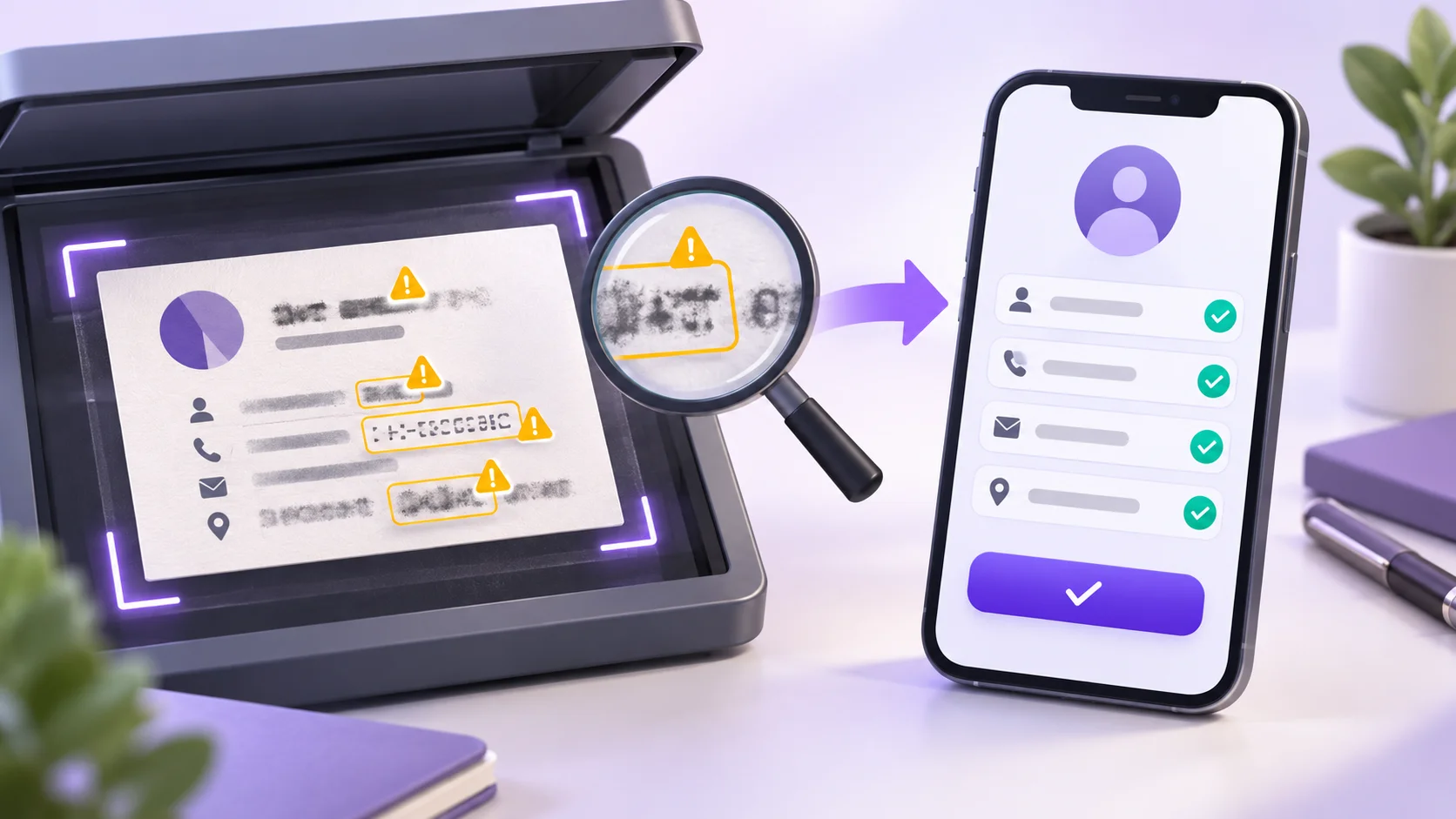
Learn why a business card scanner reads some details incorrectly and how to fix names, phone numbers, emails and company fields before saving a contact.

Convert a business card photo into an editable contact, check the extracted details, and download a VCF file for your phone or contacts app.