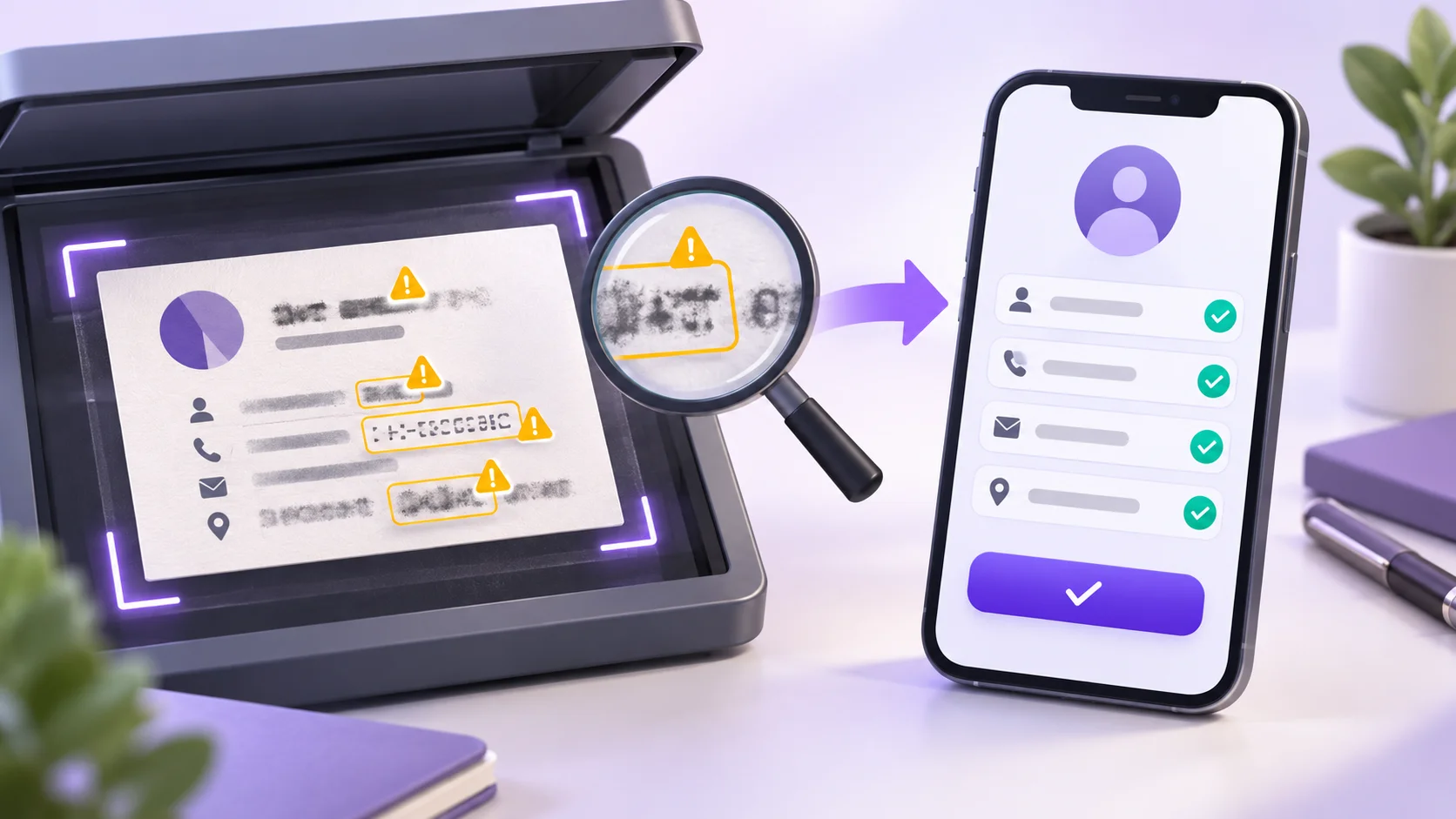
Business Card Scan Mistakes: Fix Names, Phone Numbers and Emails
A business card scanner can save you from typing every contact by hand, but its first result still needs a careful look. One incorrect digit can break a phone number. One misplaced dot can send an email to the wrong address. A company name in the person field can make the contact difficult to find later.
These problems do not always mean the scanner failed. Optical character recognition, or OCR, reads shapes in an image and turns them into characters. Blur, glare, small fonts and unusual layouts can make two characters look alike or hide the relationship between lines. The practical solution is to review the suggested fields while the original card is still visible.
If you have a card ready, open the Business Card to Contacts tool. It lets you correct the result before downloading the VCF contact file.
Why business card scans contain mistakes
A business card combines design and information. Text may be printed in several sizes, aligned in different directions or placed beside icons instead of labels. A person’s name may use a decorative font while the email address is tiny. Glossy stock can reflect light across the exact line you need.
OCR recognizes the visible text, but recognizing a line and understanding its role are separate tasks. An email address has a recognizable pattern, while a short line such as “Morgan Group” could be a company, a surname or both. A careful converter should leave room for your judgment instead of pretending every field assignment is certain.
Fix 0 and O, 1 and I, and other similar characters
The most common OCR corrections involve characters with similar shapes. Check these pairs wherever they affect contact details:
- 0 and O: Common in phone numbers, email usernames and domains.
- 1, I and l: Easy to confuse in narrow fonts and compressed photos.
- 5 and S: More likely when ink is faint or the card is blurred.
- 8 and B: A shadow or low contrast can close or open parts of the character.
- Hyphen, underscore and dot: Small marks can disappear from an email address.
Use the context to decide. A telephone line normally contains digits, while a person’s name normally contains letters. Do not make that assumption for account IDs, extensions or branded spellings; compare them directly with the card.
Correct phone numbers without losing useful details
Count every digit in the extracted phone number. Preserve the leading + and country code when they appear on the card. In countries where local numbers begin with zero, keep that leading zero unless you know the international form should replace it.
Extensions also matter. A card might show “ext. 204,” “x204” or a direct-dial number. Keep the extension with the correct telephone field. If the card has a mobile number and an office number, add both and label them separately rather than combining them into one value.
Do not rely on the number looking roughly right. Read it from the end back to the beginning or group the digits as printed. This makes repeated or missing digits easier to notice.
Repair email addresses character by character
An email address must match exactly. Check the part before the @, the domain and the ending. Look closely for missing dots, doubled letters, underscores mistaken for spaces and a final “com” read as “corn.”
The converter warns when an email does not resemble a complete address, but a valid-looking address can still be wrong. For example, both alex.morgan@example.com and alex.m0rgan@example.com have a valid shape. Only the printed card tells you which one is correct.
If a card contains two email addresses, keep them as separate entries. Label them by use when that distinction is clear. Do not guess which one is preferred when the card does not say.
Separate the person, company and job title
A scanner may correctly read every word yet place a line in the wrong field. This happens because business cards do not follow one visual order. Some start with a logo and company name; others lead with the person or put the title above the name.
Use the display-name field for the name you want to see in the contacts list. Put the organization in Company and a role such as “Operations Manager” in Job title. The tool also provides separate given-name and family-name fields, but you should fill those only when the name structure is clear. Name order varies across cultures, and a converter should not force one convention.
For a card that represents a business without naming a person, use the organization as the display name. There is no need to invent a person to create the contact.
Check websites, addresses and unmatched text
Confirm a website domain before saving it. OCR can confuse a slash with the number 1 or miss a dot between parts of the domain. The converter stores the reviewed website in the VCF; it does not need to visit the site to do that.
Postal addresses are harder to structure because cards may combine street, city, region and postal code on one line. Keep the address readable and avoid filling missing components from memory. If a detail appears in the card preview but not in a contact field, open the Recognized text section and copy it into the appropriate field manually.
Retake the photo when editing is not enough
A few corrections are normal. A page full of broken characters usually points to the source image. Retake the photo when text is out of focus, glare crosses an important line, an edge is cropped or the card occupies only a small part of the frame.
Use even light, hold the camera parallel to the card and keep all four edges visible. Upload the original image rather than a compressed copy from a messaging app. Enlarging an already blurry file does not restore the missing detail.
Review before you download the VCF
Work through the form in a fixed order: display name, company, title, phone numbers, emails, website and address. Then select Download contact (.vcf). Opening or importing the file in a contacts app is a separate step, and you still choose whether to save it.
For the complete upload-to-import process, read How to Turn a Business Card Photo into a Phone Contact. When you are ready, scan the business card and review the contact fields before downloading.
Fixing Business Card Scanner Errors
Answers about incorrect OCR characters, misplaced contact fields and improving business card photos.
Final Verdict
The safest business-card workflow is simple: compare the suggested fields with the original card while both are visible. Check ambiguous characters, preserve phone prefixes and extensions, confirm every email character, and separate the person from the company. Retake a poor photo when corrections become guesswork.

Zarbaz Khan
Guides to OCR, document conversion and reviewing extracted text. Read the author profile for background and more articles.