Fix Formatting After Converting an Image to Word
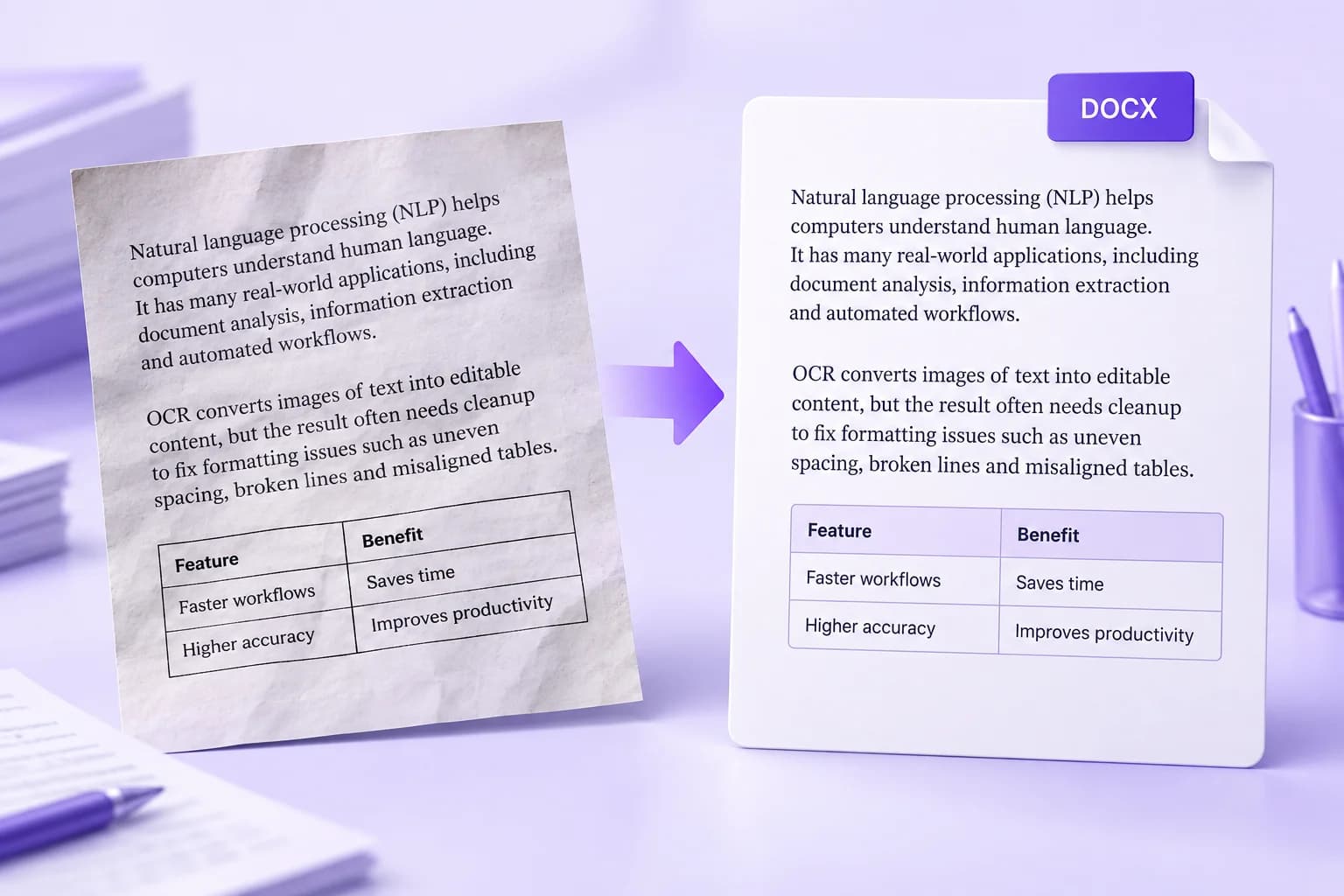
You have converted a photographed page into a Word document, but paragraphs break in odd places and a table needs attention. That does not necessarily mean the text extraction failed. Reading words and rebuilding a document's structure are separate parts of the job.
The quickest cleanup order is to check the wording, repair paragraphs, apply headings, fix tables, and review the page layout last. Start with the Image to Word converter, then use the exported file as an editable draft rather than assuming it is an exact replica of the photo.
Decide what the finished document needs to do
If you want to update a letter, reusable paragraphs matter more than matching every original line break. If you need the original page as a visual reference, keep the source photo alongside the Word document.
For a form, think about which fields you actually need to edit. Recreating a clean table can be more practical than trying to preserve every decorative line. Choosing the goal first prevents you from spending time repairing details that have no value in the final file.
Correct the text before changing its appearance
Open the image and document together. Compare names, headings, dates, and the beginning and end of each paragraph. Check that a footer or page number has not been inserted into a sentence.
Mark uncertain words while you review rather than guessing. A tidy font can make incorrect text look trustworthy, so leave styling until the wording is checked. Keep a copy of the first export in case you need to compare your edits with it.
Repair paragraphs and line breaks
Text can arrive with a break at each line of the source image. Join lines that belong to the same paragraph, while preserving breaks between headings, list items, and separate addresses.
Avoid replacing every break across the document in one operation. A short address block and a body paragraph have different structures. Work through a section, check the result, and continue.
| What needs fixing | A practical approach |
|---|---|
| One sentence spread across several lines | Join the lines into a paragraph |
| Large gaps made from spaces | Use paragraph spacing, tabs, or a table |
| A heading that looks like body text | Apply a heading style |
| List items merged into a paragraph | Restore one item per line, then apply a list |
| Repeated page numbers in the text | Remove them from the body after checking context |
Apply a small set of styles
Choose one body style and a consistent hierarchy for headings. Use the editor's heading styles rather than making each title bold and large by hand. That gives you a document that is easier to change later.
Keep paragraph spacing consistent. Do not press Enter repeatedly to position a heading on the next page: edits above it will move it again. Add an intentional page break only where the document genuinely needs one.
Review tables by meaning, not just appearance
Check every cell against the original. Confirm that row labels, values, and column headings still belong together. A table can look aligned while containing a value in the wrong row.
If the exported structure is awkward, build a fresh table with the right number of columns and paste the verified content into it. For example, a simple list of item descriptions and quantities should keep each description beside its quantity. Do not use repeated spaces to simulate columns that will shift when the font changes.
Check the final page layout
After the text and structure are stable, adjust margins and inspect where pages end. Look for a heading stranded at the bottom of a page, a table that extends beyond the page width, or an unwanted blank page.
Save, close, and reopen the file in the editor you will actually use. If you also export a PDF for sharing, inspect that PDF separately; a good editing view is not a substitute for checking the final artifact.
When you only need the words for a message or search, the Image to Text tool may be sufficient. When you need a document you can keep updating, convert the image to Word and follow the cleanup order above.
Common Questions
Practical answers about image to Word formatting.
Final Verdict
Treat the exported Word file as an editable draft. Correct the words first, rebuild useful structure second, and refine the page layout last so the finished document is easier to maintain.

Zarbaz Khan
Guides to OCR, document conversion and reviewing extracted text. Read the author profile for background and more articles.