Why Screenshot Translations Go Wrong and How to Improve Them
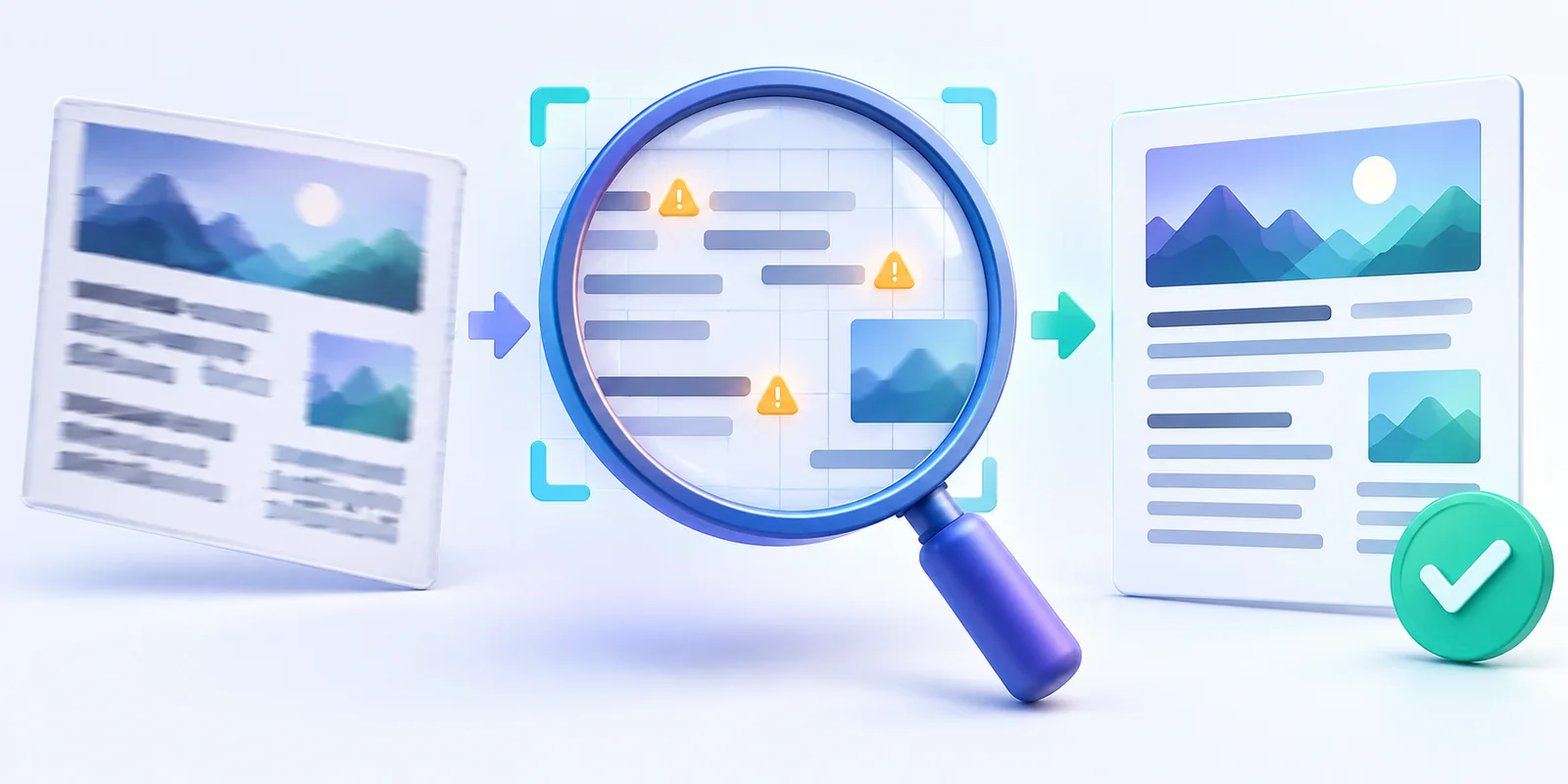
A screenshot translation may sound wrong even when the translation service is working normally. The problem often begins one step earlier: OCR misreads the image, combines text in the wrong order or loses punctuation. Translation then receives an inaccurate source sentence.
A reliable workflow separates these stages. Our Image Text Translator shows editable OCR text before translation and keeps the translated result in a separate panel. That makes it easier to find where an error started.
First identify whether OCR or translation failed
Compare the screenshot with the extracted source text. If a word, number or line is already wrong in the source editor, the problem is OCR. Correct that text and translate again.
If the source is accurate but the result sounds unnatural, the issue may involve context, ambiguity or machine translation. In that case, review the full sentence, surrounding text and intended audience.
Problem 1: Small or blurry text
OCR needs visible character shapes. A low-resolution screenshot, compressed social image or photograph taken out of focus can merge letters and punctuation. Enlarging a tiny image after capture does not recreate missing detail.
How to improve it: Use the original screenshot, crop to the relevant area and avoid sending the image through messaging apps that heavily compress it. For photographed text, steady the camera and use even lighting.
Problem 2: Decorative fonts and busy backgrounds
Text placed over photographs, gradients or textures can have weak contrast. Outlined, curved and highly decorative letters are also harder to recognize than simple interface or document fonts.
How to improve it: Crop away unrelated graphics. If possible, increase contrast or use a source version with a plain background. Check every unusual letter in the editable source.
Problem 3: Text is read in the wrong order
A screenshot can contain menus, chat bubbles, columns, captions and buttons. OCR may recognize every word but arrange the blocks in an order that changes the meaning.
How to improve it: Translate one panel or conversation message at a time. Reorder the extracted lines in the source editor before translating. Keep headings with the paragraph they describe.
Problem 4: Names and product terms are translated
Machine translation may treat a person's name, brand, model number or technical term as ordinary language. A short phrase gives the service little context for deciding what should remain unchanged.
How to improve it: Verify names against the screenshot and correct OCR spelling. Keep product codes exactly as written. After translation, restore an official brand spelling or established technical term when needed.
Problem 5: The screenshot mixes languages
Menus, product listings and social posts often combine local language, English brand names and abbreviations. Automatic language detection usually focuses on the dominant language, while shorter fragments may be interpreted differently.
How to improve it: Remove unrelated fragments, or translate separate language sections individually. Do not translate model numbers, URLs, email addresses and other identifiers.
Problem 6: A word has more than one meaning
A single word can have several valid translations. The correct choice depends on the sentence, subject and country. Interface labels and short signs provide especially little context.
How to improve it: Include the complete sentence or nearby heading when it clarifies meaning. Review the result with the subject in mind. For high-stakes or published material, ask a fluent speaker or professional translator to confirm it.
Problem 7: Numbers and punctuation change the meaning
A missing decimal separator, minus sign or colon can change a price, measurement or time. OCR can also confuse Latin letters with digits, such as O with 0 and I with 1.
How to improve it: Check numbers directly against the screenshot before translation. Copy critical values without modification when they do not need linguistic translation.
Problem 8: Handwriting is inconsistent
Clear printed text generally produces the most reliable OCR. Cursive handwriting, overlapping strokes and uneven baselines create uncertainty before translation begins.
How to improve it: Use a sharp, well-lit image and crop one note at a time. Correct the complete source manually before selecting a target language. Do not assume a fluent-looking translation proves the handwriting was read correctly.
A better screenshot translation workflow
- Use the original, highest-quality screenshot.
- Crop to one relevant section.
- Extract the text with OCR.
- Compare every line with the image.
- Correct names, numbers and reading order.
- Choose the target language and translate.
- Review the result in context.
- Copy or download only after the final check.
Changing the source text or target language in the tool clears the old result. This prevents a previous translation from appearing current after its input has changed.
When to use human review
Machine translation is useful for understanding routine messages, signs, menus and interface text. It should not be the only review for contracts, medical instructions, legal filings, safety notices, published marketing or other material where a small error can cause harm.
The tool produces translated text rather than a translated image. It does not preserve typography, captions or visual placement. If you only need to copy the original wording, use Screenshot to Text instead.
For translation, begin with the Image Text Translator and spend most of your review time on the source. A clean source gives the translation service the best chance of producing a useful result.
Improving Screenshot Translation
Answers about OCR errors, automatic language detection, context and translation review.
Final Verdict
Most screenshot translation problems come from image quality, OCR mistakes, reading order or missing context. Check the extracted source against the screenshot, correct it before translating, and use human review whenever accuracy has serious consequences.

Zarbaz Khan
Guides to OCR, document conversion and reviewing extracted text. Read the author profile for background and more articles.