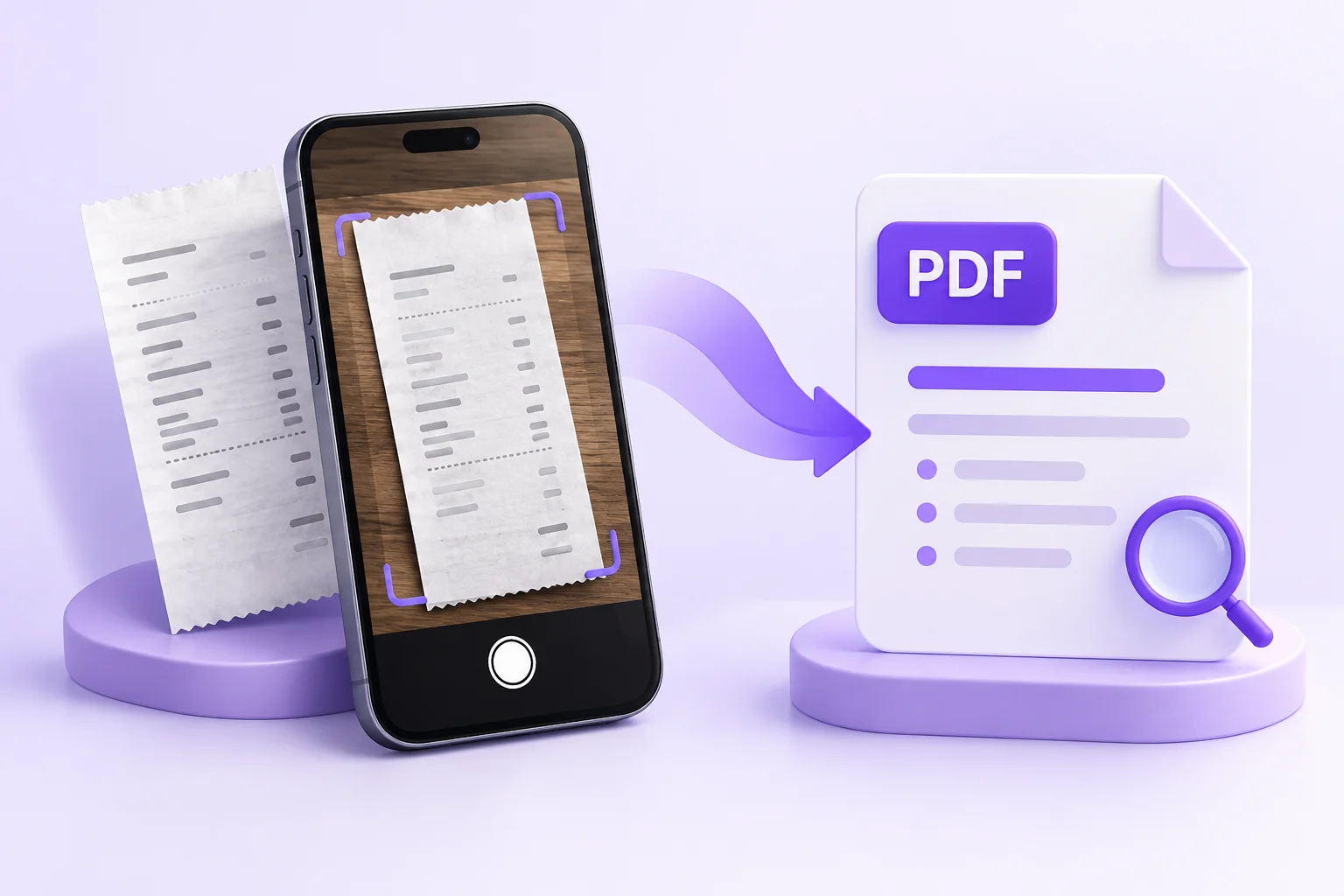
Turn Receipt Photos into PDFs You Can Find Later
A folder full of receipt photos is easy to create and difficult to search. Converting them to PDF helps with sharing and filing, but a useful archive also needs clear source images, checked details, and filenames that identify each document.
Use the Image to PDF converter for the conversion step, then review the downloaded file before putting it away. Keep the original receipt image as a reference, particularly when the visual appearance or exact printed wording matters.
Capture the whole receipt clearly
Place the receipt on a flat surface and make sure its printed content is visible. Include the merchant name at the top and the totals near the bottom. Long receipts are easy to crop accidentally when you focus only on the middle.
Check the photo before moving on. If a fold, reflection, or shadow hides a line, take another shot. For a long receipt that is unreadable in one frame, keep a complete reference photo and take closer images of the difficult sections. Label those images so they remain connected.
Avoid filters that erase faint characters while making the paper look cleaner. The useful outcome is readable information, not a perfectly white background.
Decide what you need to preserve
A PDF is a file format, not a guarantee of how its contents are stored. Some PDFs contain page images; others contain selectable text. OCR can turn visible characters into text, but it may not retain every visual feature of the source.
The site's image-to-PDF workflow extracts text and provides PDF export. Treat the result as a converted document and inspect it. If you need a faithful visual record of the receipt, retain the original photo as well rather than assuming the exported text replaces it.
This distinction matters for faded print, handwritten additions, logos, and unusual layouts. Keep the source available whenever a detail might need to be checked later.
Convert and verify one receipt
- Open the Image to PDF tool and upload a clear receipt image.
- Review the extracted content and correct readable mistakes before exporting.
- Download the PDF and open it in your PDF reader.
- Check the merchant, date, item lines, and totals against the photo.
- Try selecting a word and searching for the merchant name.
Review amounts character by character. A missing decimal point or an incorrect digit can be easy to miss inside an otherwise readable result. Do not invent a value when the source is unclear; keep the image and resolve the detail from a clearer record if one is available.
Give the file a name that works outside the tool
Rename the downloaded file before saving the next one. A simple pattern is date, merchant, and purpose. For example, 2026-09-09-example-cafe-team-lunch.pdf tells you more than extracted-text.pdf.
Use the date shown on the receipt, and label uncertainty if it cannot be read. Keep names short enough to scan in a folder. If two receipts have the same date and merchant, add a sequence number rather than overwriting the first file.
Store the source image with the same base name. Then the image and PDF remain easy to match without opening several files.
Make the folder structure simple
Choose a system you will use consistently, such as year and month. Add project folders only when they help you retrieve documents. Too many categories can make filing slower without making retrieval easier.
Start with a few receipts and test your system: can you find one by its date, merchant, or purpose? Searchability depends on both the document text and the search capabilities of the application you use. A sensible filename remains useful even when a folder search does not inspect PDF contents.
Finish with a retrieval check
Open one saved PDF from its final folder, not just the browser's recent downloads list. Confirm that it is the right receipt and that its paired image is present. This catches accidental overwrites and files left in the wrong place.
If you later need plain text from a PDF, use the PDF to Text converter. For a new receipt photo, create the PDF, verify it, and file both versions while the context is fresh.
Common Questions
Practical answers about receipt photo to PDF.
Final Verdict
A useful receipt archive combines a readable source photo, a checked PDF, and a consistent filename. Verify the details and test retrieval before moving on to the next receipt.

Zarbaz Khan
Guides to OCR, document conversion and reviewing extracted text. Read the author profile for background and more articles.