Save Any Web Page as a Clean PDF (Without the Clutter)
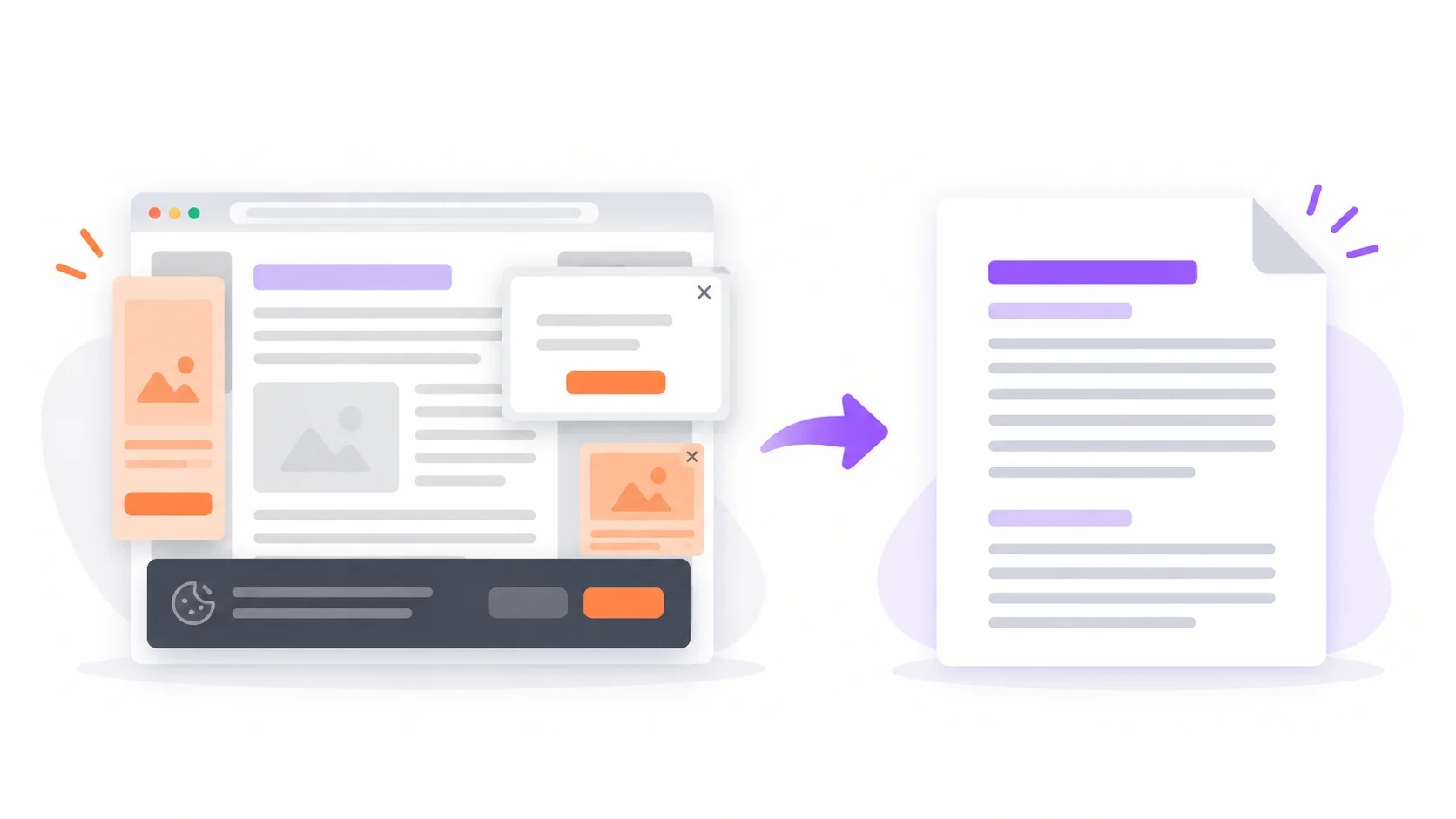
You need that order confirmation as a file. That article saved for a flight. That terms-of-service page captured as it reads today. So you press Ctrl+P, choose "Save as PDF", and get a document with a cookie banner across page one, ads mid-paragraph, and a headline sliced in half at a page break.
Saving a web page as a PDF is easy. Saving a clean one takes knowing which method fits the job. There are two, and they solve different problems.
Start with the browser: it is often enough
Every browser prints to PDF: Ctrl+P, or Cmd+P on a Mac, then choose Save as PDF as the destination. Two tricks make the result noticeably better:
Print from Reader Mode. Load the article, switch to your browser's reader view first, then print. Reader mode strips the navigation, sidebars and most ads before the PDF is made. For plain articles this is the single best free trick there is.
Open "More settings". Turning off Headers and footers and turning on Background graphics fixes the two most common complaints in one dialog.
For a simple blog post on a well-behaved site, that is genuinely all you need. It is also the only option that works for pages behind a login, because your browser is already signed in and no external tool is.
Why print-to-PDF so often looks bad anyway
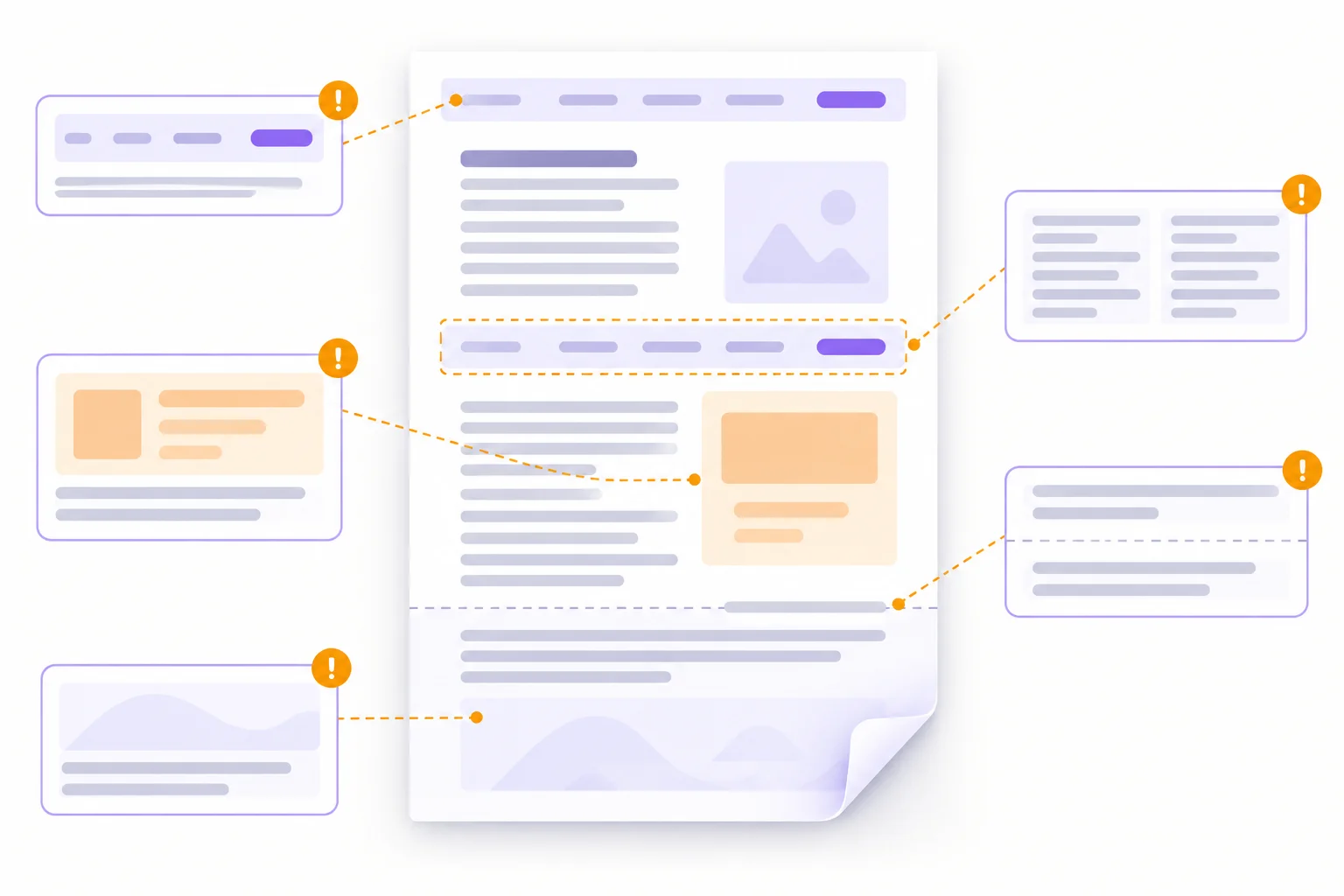
When it fails, it fails for structural reasons you cannot fix from the print dialog:
Pages are designed for screens, not paper. Unless the site's developers wrote dedicated print styles, and most do not, the browser improvises the conversion.
Sticky elements repeat. Fixed navigation bars and floating chat buttons can stamp themselves onto every page.
The clutter is part of the page. Cookie banners, newsletter popups and ads are captured exactly as shown, and reader mode only helps where reader mode is available. It is not available on receipts, dashboards or confirmation pages.
Content breaks mid-element. Images, table rows and headings get cut in half at page boundaries.
Some content never renders. Anything that loads as you scroll may simply be missing from the bottom of the PDF, so scroll to the very end of a long page before printing.
Getting the print dialog to behave
A handful of settings do most of the work:
Paper size: A4 or Letter, matching wherever the file might eventually be printed.
Landscape for wide content. Data tables and dashboards survive far better sideways.
Background graphics on when the page's design carries meaning, such as highlight colours or table shading. Off for maximum ink-friendly plainness.
Scale. Dropping to 80–90% often pulls a stray final line back onto the previous page and removes an almost-empty sheet.
Margins: modest margins keep line lengths readable rather than stretching text edge to edge.
When you have the HTML rather than the page
The second method applies when what you are holding is markup rather than a live URL: an invoice template, an HTML email design, a documentation page you exported, or the source of a page you copied through View Page Source.
Our HTML to PDF Converter takes that markup directly:
Paste your HTML into the editor. Full HTML5 markup and CSS styling are supported.
Switch to Preview to see exactly what the PDF will look like before you convert.
Click Download PDF.
Four things are worth knowing about it:
Nothing is uploaded. The conversion runs entirely in your browser, so your markup never reaches a server. That matters when the HTML is an unpaid invoice or a client's template.
The output is A4 portrait, and anything taller than one page is split across multiple pages automatically.
Embed your CSS. Browsers restrict what a local page can load, so external stylesheets linked with
<link>may not apply. Put your CSS in a<style>block or inline it for a faithful result.The PDF is a visual copy, not selectable text. Your HTML is rendered at high resolution and placed onto the pages, which reproduces your layout exactly but means the text cannot be selected, searched or copied out of the file. If you need selectable text, print to PDF from the browser instead.
Which method for which job
What you are saving | Use |
|---|---|
An article you are reading | Reader mode, then browser print-to-PDF |
A receipt or confirmation page | Browser print-to-PDF, while the page is still open |
Anything behind a login | Browser print-to-PDF, since only your browser is signed in |
An HTML invoice or report template | |
An HTML email design for sign-off | HTML to PDF Converter |
Confidential markup you cannot upload | HTML to PDF Converter, which runs locally |
A PDF whose text must stay searchable | Browser print-to-PDF |
Photos or scans of paper documents |
What people actually save as PDFs
Order confirmations and receipts. The confirmation page is gone the moment you close the tab, the PDF is yours permanently, and expense systems want a file rather than a link.
Articles and documentation, for offline reading, annotation, or sharing with someone who should not have to fight the same popups you did.
Terms, policies and listings, as evidence. Web pages change silently. A dated PDF captures what the page said when it mattered: a rental listing, a price, a policy you agreed to.
Invoices from web apps. Plenty of small tools show an invoice page but offer no download button, and now it has one.
If the thing you are archiving is on paper rather than on the web, the Image to PDF Converter is the companion tool for that direction. And if you need to edit a PDF you already have rather than create one, the PDF to Word Converter takes it the other way.

Zarbaz Khan
Guides to OCR, document conversion and reviewing extracted text. Read the author profile for background and more articles.