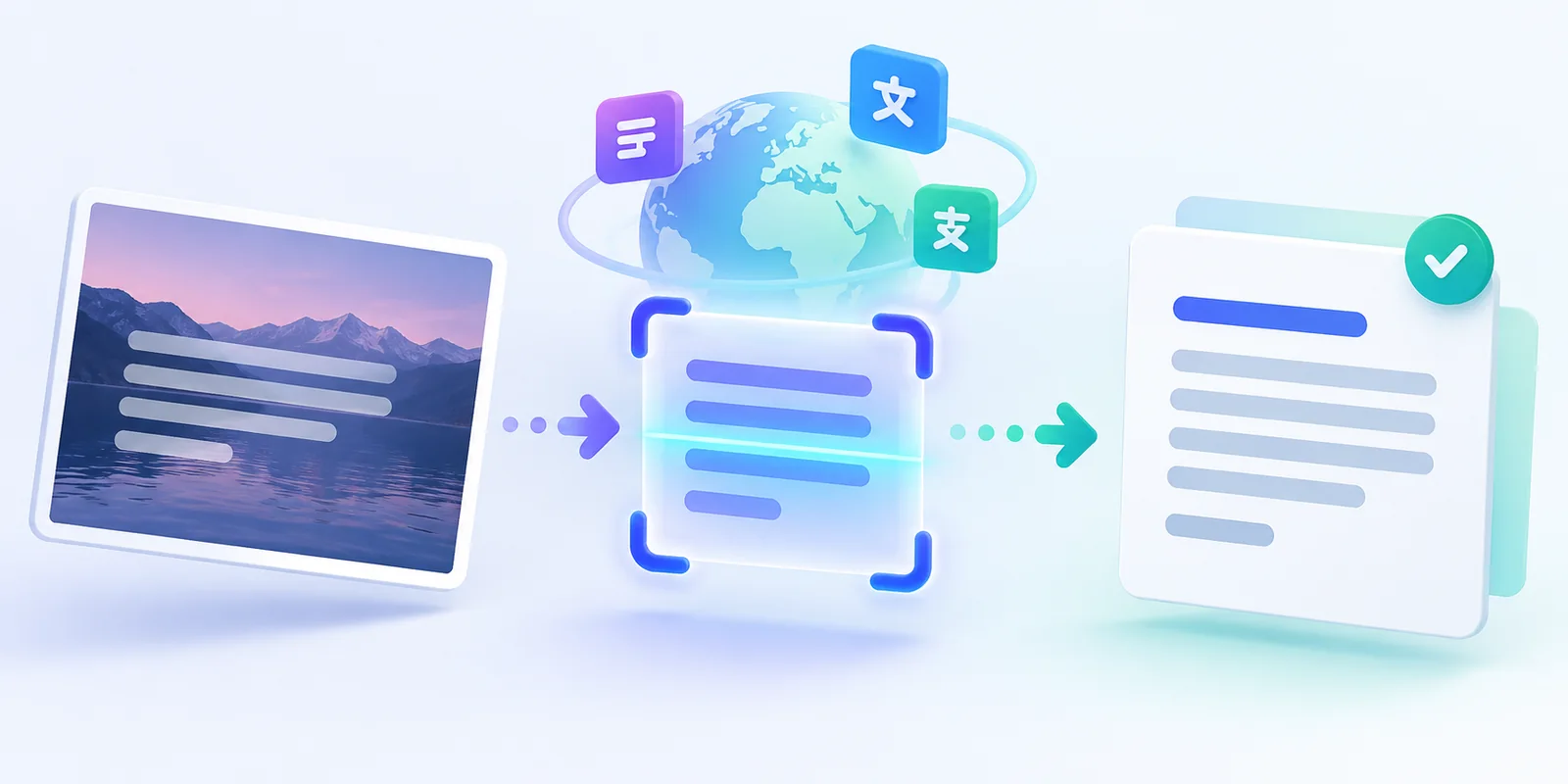
How to Translate Text from a Screenshot
A screenshot can contain a message, menu, product description, error notice or social post that you need to understand. Retyping unfamiliar words into a translator is slow, especially when the text uses a different writing system. An image text translator combines OCR and machine translation: OCR reads the screenshot first, then the translation service works from the reviewed text.
This guide explains how to use our Image Text Translator. The tool keeps the recognized source and translated result separate, so you can correct OCR errors before they affect the translation.
What you need before translating a screenshot
Start with the clearest version of the screenshot you can find. Use the original capture instead of a photo of another screen. Text is easier to recognize when it is upright, sharp and large enough to read without heavy zooming.
The current tool accepts one JPG, PNG or WebP image. OCR extraction follows the site's scan limits. Translation requires an account with an active Pro plan and uses the plan's monthly translation allowance.
How to translate a screenshot step by step
1. Upload the screenshot
Open the Image Text Translator and choose your screenshot. You can also drag the image into the upload area. Check that the screenshot does not expose passwords, private account details or other information you do not want to process.
2. Extract the visible text
Select Extract text. The image is sent to Google Cloud Vision, which returns the recognized words. OCR is responsible for reading the image; it does not translate anything at this stage.
3. Correct the source text
Compare the editable source text with the screenshot. Check names, prices, dates, punctuation and characters that look similar. A single OCR mistake can change the meaning of a sentence when it reaches the translation service.
For example, imagine a screenshot containing the Spanish sentence:
La biblioteca cierra a las seis.
The reviewed English translation is:
The library closes at six.
If OCR changed seis to another word, the translated closing time could become incorrect. Fixing the source first gives the translation service the intended sentence.
4. Choose the target language
Select the language you want from the searchable list. Google Cloud Translation detects the source language automatically, so you do not need to identify it before starting. The tool displays the detected source language when the service returns it.
5. Translate the reviewed text
Select the translation button. The tool sends the text currently visible in the source editor, including your corrections. It does not send an earlier hidden version of the OCR result.
6. Review, copy or download
Read the translated text while keeping the screenshot and source text visible. You can edit the translation when a name, tone or specialist term needs adjustment. The interface labels a result that you edited after machine translation.
Copy the result to your clipboard or download it as a UTF-8 TXT file. UTF-8 preserves characters used by Arabic, Urdu, Japanese, Chinese and other writing systems.
Why OCR review comes before translation
OCR and translation solve different problems. OCR determines which characters appear in the image. Translation determines how the resulting words should be expressed in another language. If OCR reads a product code, proper name or punctuation mark incorrectly, even a strong translation service receives the wrong source.
Review these details carefully:
- Names: People, companies and locations may need their established spelling.
- Numbers: Check prices, times, dates, measurements and phone numbers.
- Similar characters: OCR can confuse O and 0, I and l, or punctuation marks.
- Line order: Multi-column screenshots may be read in an unexpected sequence.
- Mixed languages: Brand names and borrowed words may not need translation.
How to improve screenshot OCR
Crop large empty areas and unrelated interface elements before uploading. Avoid screenshots with very small text, motion blur, heavy compression or text placed over detailed photographs. If you photographed a sign or menu, keep the camera parallel to the surface and avoid glare.
When a screenshot contains several separate panels, translate one focused crop at a time. This reduces the chance that headings, buttons and body text will be combined in the wrong order.
What the tool does not do
The first version returns translated text. It does not replace words inside the original image, reproduce fonts, preserve speech bubbles or generate a translated copy of the screenshot. It also does not provide certified translations for legal, medical, immigration or other official use.
Machine translation can miss context, humor, technical meaning and cultural nuance. Ask a qualified human translator to review important material before publication or formal use.
When Screenshot to Text is enough
If you only need to copy the original language, use the Screenshot to Text converter. It extracts the words without using your translation allowance.
When you need another language, use the full workflow: upload, extract, correct, translate and review. You can begin with the image text translation tool.
Screenshot Translation Questions
Answers about OCR review, translation access, languages and downloaded results.
Final Verdict
Translate screenshot text in two deliberate stages: extract and correct the source first, then translate the reviewed text. This prevents simple OCR mistakes from becoming misleading translations and gives you a clean result to copy or download.

Zarbaz Khan
Guides to OCR, document conversion and reviewing extracted text. Read the author profile for background and more articles.