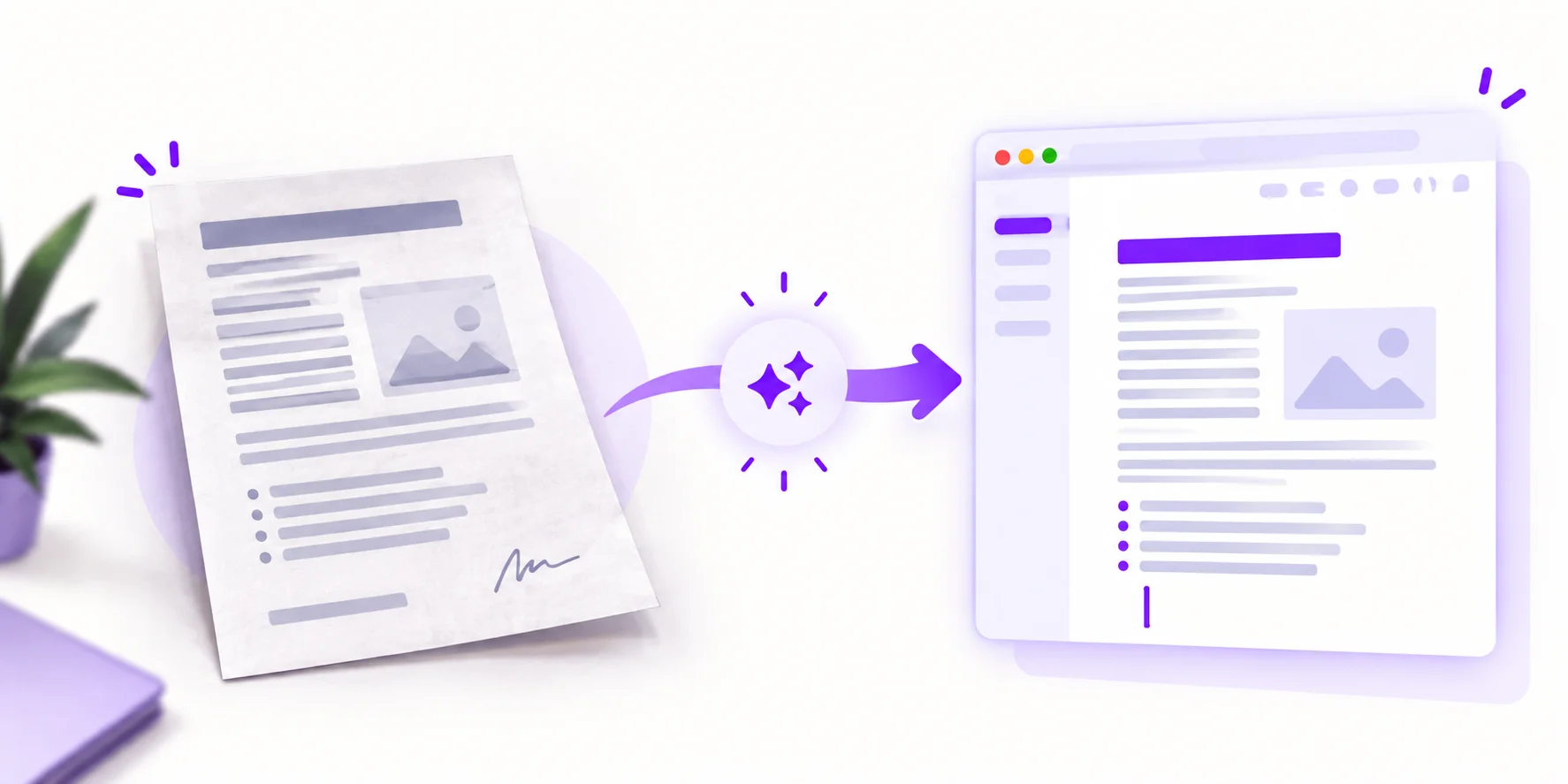
Convert a Picture to an Editable Word Document (Free)
The report you need to edit exists only as a photo someone sent you. The contract is a scan. The meeting handout is three pictures on your phone. And the deadline assumes you will somehow retype all of it.
You do not have to. Converting a picture into an editable Word document takes about thirty seconds. The real question, and the one nobody answers honestly, is what the conversion preserves and what you will still fix by hand. Here is both.
Photo to .docx in three steps
Open the Image to Word Converter. Free, no signup.
Upload your picture. JPG, PNG and photographed pages all work, up to 4 MB on the free tier.
Download the .docx and open it in Word, Google Docs or LibreOffice, fully editable.
The AI reads the text, printed or handwritten, reconstructs the paragraphs, and outputs a real Word file rather than a text dump. Images are processed online; see our security page for details.

What actually survives the conversion
This is where most "image to Word" articles wave their hands. Here is the truthful picture:
In your image | In the .docx | Notes |
|---|---|---|
Paragraphs and line breaks | Preserved | Paragraph structure comes through reliably |
The text itself | Preserved | Printed text converts at very high accuracy, and clear handwriting works too |
Bold, headings and sizes | Partial | Obvious size differences usually survive; subtle styling may flatten |
Tables | Depends | Clean, well-ruled tables convert; dense or borderless ones may arrive as tabbed text |
Multi-column layouts | Often flattened | Columns are typically read into a single flow; see the fix below |
Images, logos and signatures | Not carried over | The output is your document's text, editable, rather than a picture of the page |
Fixing what does not survive
Five minutes of cleanup beats an hour of retyping. In order of usefulness:
Columns arrived as one flow? Convert one column at a time. Crop the image to a single column, convert, repeat. This gives near-perfect results for newsletters and academic papers.
Table arrived as tabbed text? In Word, select the lines and use Insert → Table → Convert Text to Table. Word rebuilds the grid from the tab stops.
Styling flattened? Apply Word's built-in Heading styles to the headings first, and everything else falls into place quickly.
An odd word here and there? Word's spell-check underlines most recognition slips for you. Fix them as you read through once.
The alternatives, compared honestly
Google Docs. Upload an image to Drive, open it with Google Docs, and it puts the recognised text above the original image. Free and decent for plain paragraphs, but formatting support is minimal and exporting to .docx is an extra step.
Microsoft Lens with Word mobile. A good camera-to-Word pipeline on your phone, if you have a Microsoft account and do not mind working on mobile.
OneNote. Right-click a pasted picture and choose Copy Text from Picture. Handy for snippets, not built for whole documents.
A dedicated converter earns its place when you want a .docx directly, with no account, from any device, and when the source includes handwriting, which the general-purpose options handle noticeably worse.
Getting a cleaner document
Output quality is decided mostly before you upload:
Scans beat photos. If you have a scanner or a scanning app, 300 DPI is the sweet spot.
Photograph flat, from directly above, in even light. Skew and shadows are the two biggest accuracy killers.
Fill the frame with the page, and take one page per shot.
Prefer the original file over one that has been through WhatsApp. Messaging apps recompress images and soften the letter edges, which is covered in our guide to PNG vs JPG for OCR.
When to use a different tool
The source is a PDF, not an image. Use the PDF to Word Converter, which handles multi-page documents properly.
You only want the raw text, not a document. The JPG to Text and PNG to Text converters are quicker for that.
The source is a screenshot. The Screenshot to Text Converter is tuned for interface text.

Muhammad Qasim
Guides to OCR, document conversion and reviewing extracted text. Read the author profile for background and more articles.