PNG vs JPG for OCR: Which Extracts Text More Accurately?
Save the same document as a PNG and as a JPG, run both through a text extractor, and you can get different results. Not because the OCR changed, but because one of those files quietly threw away information before the OCR ever saw it.
Here is what compression actually does to text, when it genuinely affects your results, and the simple rules that make the format question a non-issue.
The one-paragraph difference
PNG is lossless. Every pixel you save is a pixel you get back. The file is bigger, but nothing is discarded.
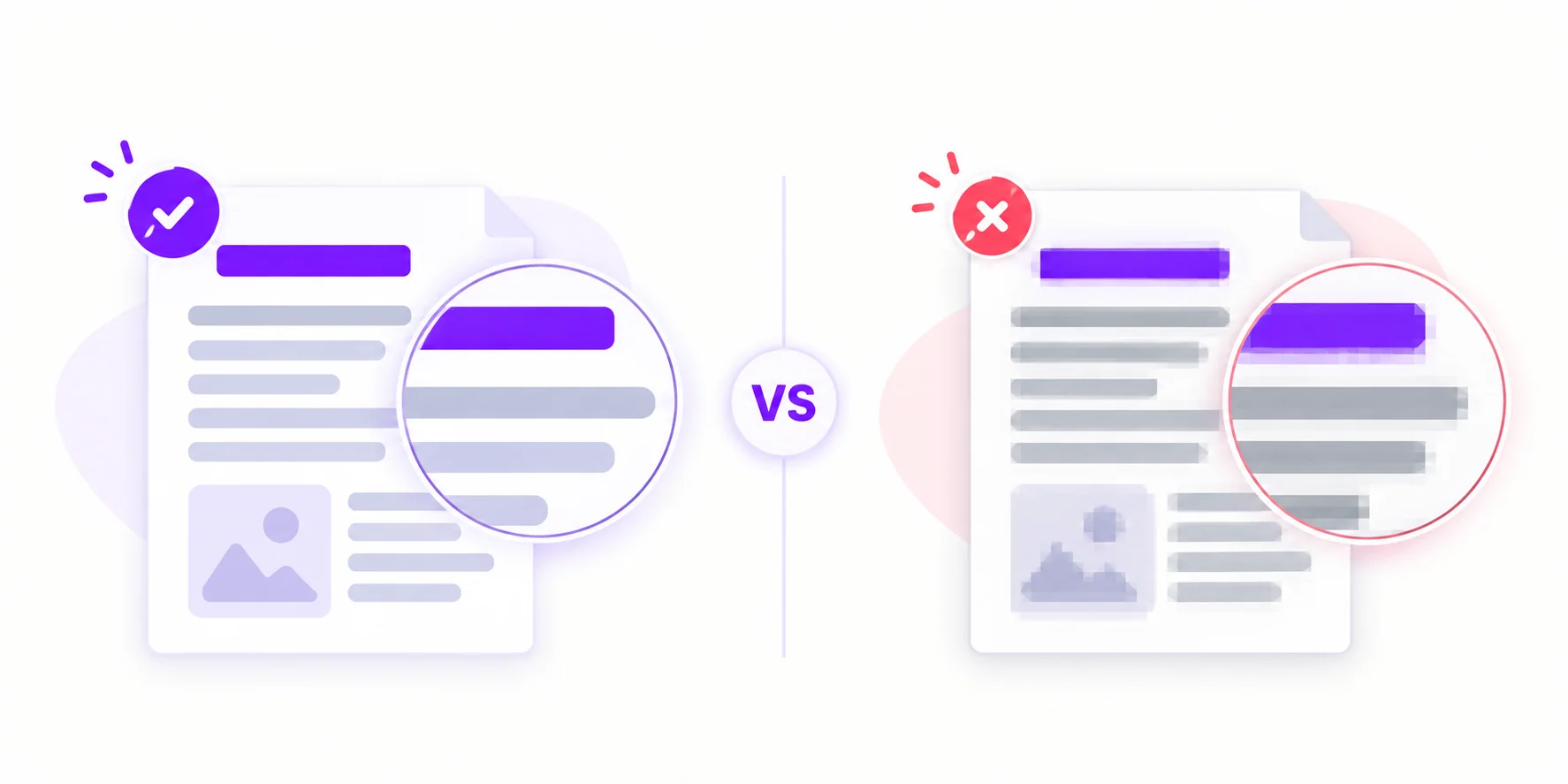
JPG is lossy. It shrinks files by processing the image in 8×8 pixel blocks and discarding detail the human eye barely notices, which is mostly sharp, high-contrast edges. That trade is brilliant for photos of faces and landscapes. But think about what text is: nothing but sharp, high-contrast edges. JPG's savings come out of exactly the place OCR looks.
What compression does to letters
Zoom far into text in a heavily compressed JPG and you will see three things:
Ringing, also called mosquito noise. Fuzzy ghost halos around each stroke, echoes of the compression maths.
Smeared thin strokes. The crossbar of an "e" or a "t" partially merges with what is next to it.
Grey haze around glyphs. Pure black-on-white becomes black-on-light-grey, shrinking the contrast that recognition depends on.
At high quality settings, around 90 and above, these effects are close to invisible and OCR shrugs them off. Under aggressive compression, or after an image has been re-saved and re-shared a few times, thin fonts and small text start losing real characters.

Test it yourself in ten minutes
You do not have to take anyone's word for this, and testing with your own documents is more useful than a generic benchmark anyway. The method:
Take one photo of a printed document and one interface screenshot.
Save each one as PNG, and as JPG at quality 90, 70 and 50. Most image editors expose that quality slider on export, and so do free tools like GIMP, Paint.NET and Squoosh.
Run all eight images through the same text extractor.
Count the character errors in each result against the original.
What you should expect to see, and what makes this test worth running once:
PNG and JPG at quality 90 will be hard to tell apart. If your document is clean and the text is a reasonable size, both come out essentially the same. This is the result that surprises people.
The screenshot degrades before the document photo does. Interface labels are small and thin, so they run out of pixels first.
Errors appear as quality drops toward 50, and they appear in a particular order: small text first, then thin fonts, then anything on a coloured background.
A photo of a printed page is stubbornly resilient, because the letters are large in the frame. Lighting and focus dominate the outcome long before compression does.
When the format actually matters
Format is not the biggest factor in OCR accuracy. Lighting, focus and text size all matter more. But it becomes decisive in these cases:
Small text. Interface labels, footnotes and table cells, where strokes are only a couple of pixels wide and there is no detail to spare.
Thin or light fonts. Delicate strokes are the first casualties of compression.
Re-shared images. Messaging apps recompress JPGs on every send, so a screenshot that has been forwarded twice has been through three rounds of loss. Always extract from the original file if you can get it.
Coloured backgrounds. Compression noise eats into contrast that was already reduced.
The practical rules
Screenshots: keep them PNG. Every operating system already saves them that way, so just do not convert or re-share before extracting. Got one ready? Use the PNG to Text Converter, or read our full guide to copying text from screenshots.
Phone photos: JPG is fine. A first-generation, high-quality camera JPG loses almost nothing that matters. Our JPG to Text Converter handles these all day.
Never re-save a JPG as a JPG. Each save is another round of loss. If you have to edit, save the intermediate file as PNG.
Exporting a document as an image? Choose PNG. When an app offers you the choice, lossless wins for anything containing text.
How to extract text from a PNG
Open the PNG to Text Converter.
Upload your file. Up to 4 MB on the free tier, no signup.
Copy the extracted text or download it. Images are processed online; see our security page for details.
Format quick reference
Where the image came from | Best format | Why |
|---|---|---|
Screenshot | PNG | Already lossless; small interface text needs every pixel |
Phone photo of a document | JPG at high quality | Letters are large in the frame; lighting matters far more |
Scanner output | PNG or TIFF | Lossless preserves fine strokes on dense pages |
Exported from a design or office app | PNG | You control the export, so take the lossless option |
Forwarded through a messaging app | Get the original | Each send adds another round of compression loss |

Muhammad Qasim
Guides to OCR, document conversion and reviewing extracted text. Read the author profile for background and more articles.