How to Copy Text from a Screenshot (Windows, Mac, Phone)
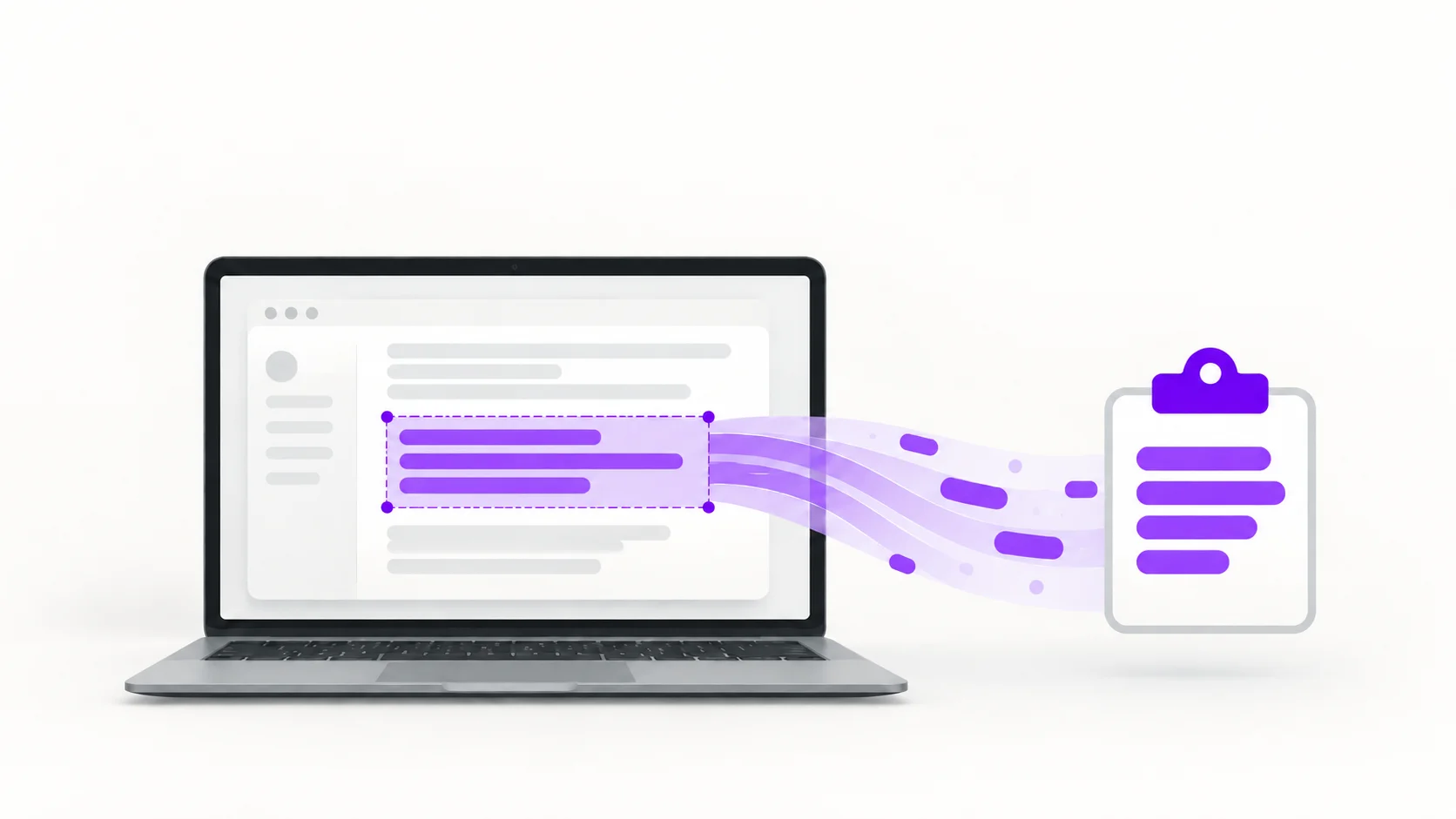
An error message you need to Google. A code snippet from a tutorial video. An address in a WhatsApp screenshot. A quote from a slide. The text is right there on your screen, and you cannot select a word of it.
Retyping is the worst answer. Every modern platform now has some way to lift text straight out of a screenshot, and where the built-in options fall short, a browser tool covers the rest. Here is the fastest method on each device, and where each one breaks down.
The fastest method on each device
Windows 11
Two built-in options:
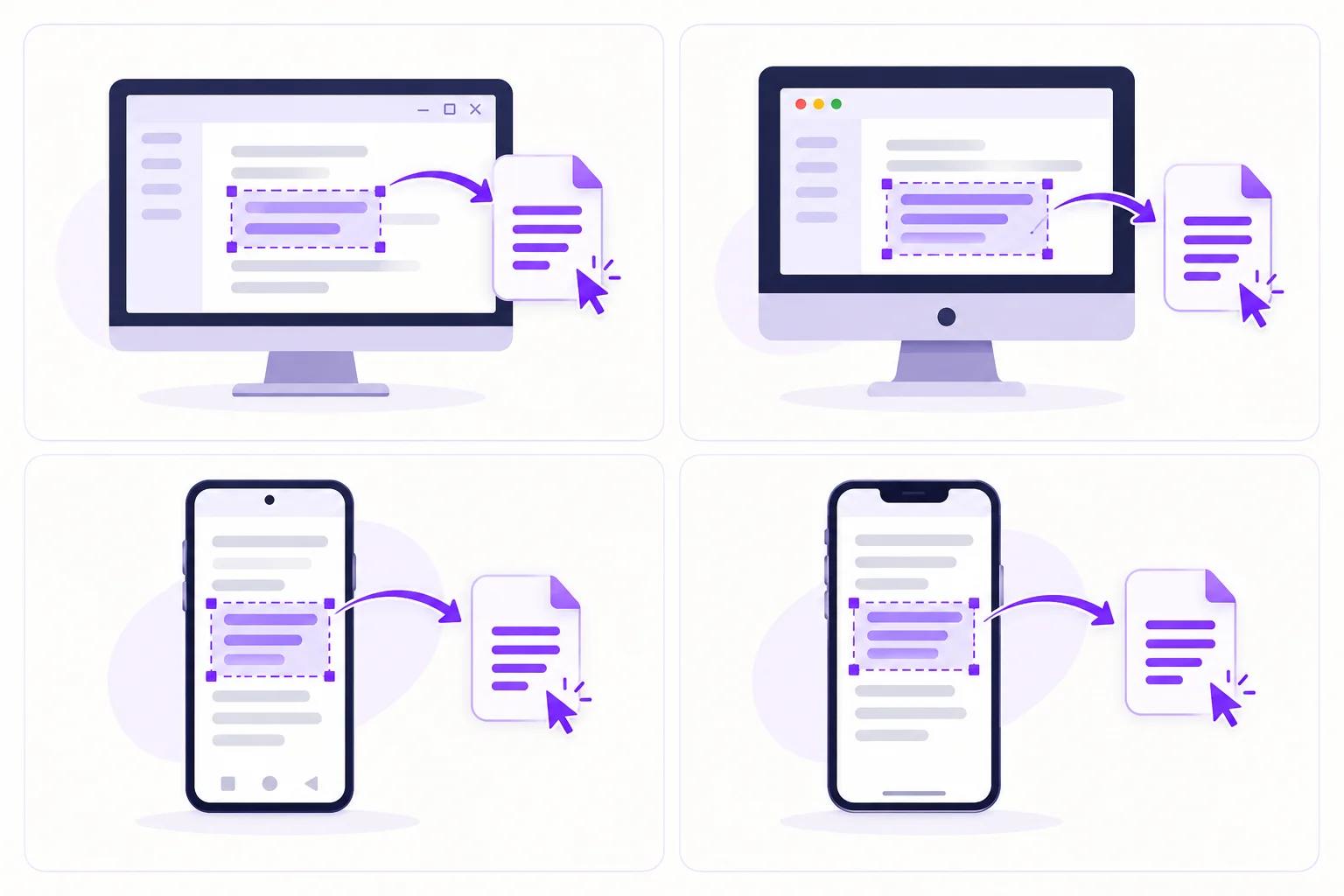
Snipping Tool. Take a snip with Win + Shift + S, open it in Snipping Tool, and click the text actions button. It detects the text and lets you copy some or all of it.
PowerToys Text Extractor. If you have Microsoft PowerToys installed, press Win + Shift + T, drag a box over any text on screen, and it lands on your clipboard instantly, with no screenshot file involved. This is the fastest option on Windows, full stop.
On Windows 10, neither is available out of the box, so skip ahead to the web tool below.
macOS
Apple's Live Text is built into the system. Open any screenshot in Preview or Photos and hover over the text: the cursor changes, and you select and copy it exactly like text on a web page. It works directly on images in Safari too.
iPhone
The same Live Text feature. Open the screenshot in Photos, touch and hold the text, then drag the selection handles. The Copy popup does the rest.
Android
Open the screenshot in Google Photos and tap Copy text from image, or select the text through Google Lens. On Pixel phones, the Recents screen can select text from any app directly.
When the built-in tools fall short
These tools are genuinely good for a clean paragraph of dark text on a light background. They struggle in predictable places:
Dark mode and low contrast. Grey-on-dark interface text, which is the most common screenshot there is, trips up quick selection tools far more than black-on-white does.
Code. The difference between
land1, orOand0, matters in code, and so does indentation. Casual text selection frequently gets both wrong or flattens the whitespace entirely.Tables and columns. Built-in selection tends to read straight across the whole image, so two-column layouts come out interleaved and scrambled.
Stylised or very small text. Thin fonts on coloured backgrounds get skipped altogether.
Older systems and batches. Windows 10, older macOS versions, and any workflow involving more than a couple of images at a time.
The option that works everywhere
When you hit any of those cases, or you are on a machine where the built-in tools do not exist, a browser-based converter does the job on every operating system with nothing to install:
Open the Screenshot to Text Converter.
Upload the screenshot. Drag and drop works.
Copy the extracted text, or download it as a file.
It is free for up to 3 conversions a day with no signup, files up to 4 MB, and your screenshot is processed online. That last part is worth knowing when the screenshot contains something you would rather not leave lying around, such as an error log or a home address.
One practical note: screenshots are saved as PNG by default on every major platform, which happens to be the ideal format for text extraction. PNG does not compress away the sharp letter edges the way JPG does. If you want the detail, we cover it in our guide to PNG vs JPG for OCR accuracy.
Getting cleaner text out of a screenshot
Crop to the text before uploading. Less interface noise around the text means fewer stray characters in the output.
Keep the original resolution. Do not screenshot a screenshot, and do not let a messaging app recompress it. Extract from the original file.
Zoom in before you capture. If the text is small on screen, enlarge it first. Bigger letters in the image mean better recognition.
For video, pause first. Pause on a sharp frame, screenshot that, then extract. Motion-blurred frames lose accuracy fast.
Which method should you use?
Situation | Best method |
|---|---|
Quick grab, Windows 11 | PowerToys Text Extractor (Win + Shift + T) |
Quick grab, Mac or iPhone | Live Text in Preview or Photos |
Quick grab, Android | Google Photos or Google Lens |
Code, tables, dark mode, small text | Screenshot to Text Converter |
Windows 10, Linux, shared or locked-down machine | Screenshot to Text Converter |
You need an editable document, not plain text |

Zarbaz Khan
Guides to OCR, document conversion and reviewing extracted text. Read the author profile for background and more articles.